External Speakers Module (VM8)


External Speakers Module (VM8) |
|
| Trading and C&C > Netrix > Introduction |
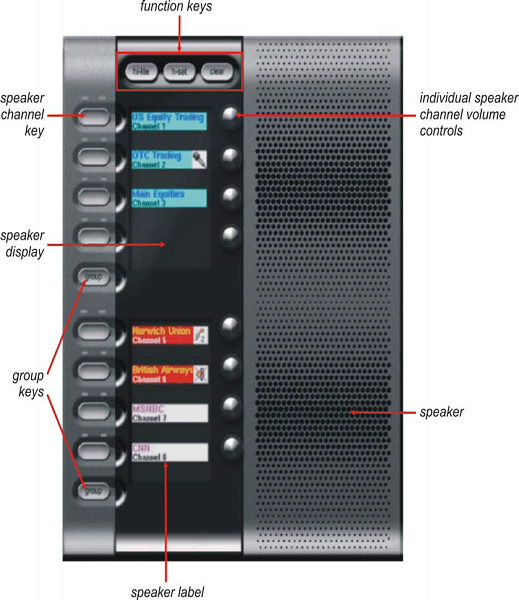
The VM8 is neat and compact, comparable in size to most 4-channel speakers. Your Netrix can support up to three VM8s providing you with a total of 24 speaker channels. Each speaker channel on the VM8 has a separate colour display label, volume control, speaker channel key, and indicator. Dedicated function keys provide quick access to some of the most commonly used functions such as clearing a line or toggling from speaker channel to handset. If multiple VM8s are supported, these keys operate across all VM8s - you are not restricted to using the appropriate key for that VM8.
Function keysThe VM8 comes with four dedicated function keys allowing you to implement the most common functionality with the minimum amount of keypresses: •h-set used to toggle the speaker channel back to your handset. •hi-lite allows you to increase volume on selected speaker channels whilst simultaneously lowering the volume on all other assigned speaker channels. Provides a quick and easy way of focusing on a specific speaker channel. •clear clears a line from the VM8. •group allows you to talk back over a group of speaker channels simultaneously. You assign speaker channels to a group then use the group key to talk back. You can create two talk back groups on each VM8. If your Netrix supports multiple VM8s, you can include speaker channels across any VM8 in a talk back group. Note: talkback can only be done via gooseneck mic, not via handset. Speaker channel keysUsed to assign a line to a speaker channel and for talking back over the speaker channel. Each speaker channel key has an associated red and green indicator. When incoming speech is being received over the channel, the red indicator lights up (user-configurable). When you are talking back over the speaker channel, the green indicator lights up. Speaker displayYou can change the contrast on the speaker displays via the display settings menu accessed via the Netrix. Speaker labelsEach speaker label can display two rows of characters. The information displayed on the speaker label matches that of the associated line label on the Netrix. The colour scheme used for the label is also mimicked on the VM8. A series of icons are used on the speaker label to tell you the status of the speaker channel, for example, a microphone is connected elsewhere, the channel has been toggled back onto the handset and so on. MicrophoneYou need a microphone to talk back over a speaker channel. Two types of microphone are provided with the Netrix: •gooseneck, attached microphone. •freestanding microphone. The gooseneck microphone is connected to the back of the Netrix. Microphone level indicatorThe microphone level indicator is found above the application display on the Netrix. It tells you whether your voice is being transmitted effectively: •indicator – OFF the microphone path is open with a low level of speech being transmitted. •indicator – Green ON an adequate signal level is being transmitted. •indicator – Red ON the signal is too strong and your voice is likely to be distorted. Note: the transmit level for the microphone can be changed – see your Platform Administrator if required. Default configuration for VM8There are a variety of different options that can be configured for the VM8 on a per-user basis. By default your VM8 is configured as follows: •Latching mode When you talk back over a speaker channel you always need to hold down the appropriate speaker channel key whilst speaking. This is referred to as Never Latch. The above option can be changed. Any changes to the above need to be implemented by your Platform Administrator.
|