Usage


Usage |
|
| Trading and C&C > Netrix > Intercom |
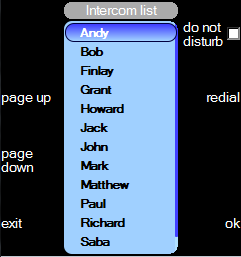
Netrix provides a fully integrated intercom system. It removes the need for additional hardware to be connected to your turret. The microphone and speaker are integrated into your Netrix. The microphone is provided at the base of the Command Module. Note: if you use a gooseneck microphone the integrated microphone is disabled. Two types of intercom calls are supported; •Personal intercom -A one to one intercom call to a colleague. Your colleague can talk back on the intercom call. •Group intercom Personal and Group intercom functionality is provided via a menu shown in the Netrix’s application display, or via a shortcut key. Intercompress icom … will display the intercom menu.
Do not disturbpress do not disturb When selected, this means that you do not receive any type of intercom call. This does not restrict you from initiating your own intercom calls. When you make a Personal call to a colleague who has “do not disturb” selected, you will hear a busy tone. For Group call, that person will not be in the Group call. Redialpress redial Will call the person or the Group you last placed an intercom to. Make a Personal intercom callA list of names is displayed in the middle window.
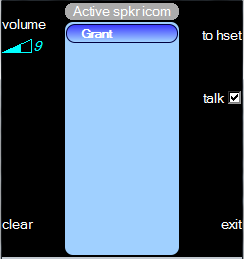
press …to highlight the colleague to intercom. press ok …you will hear a short tone as a confirmation that the call has been setup. If the person you called is busy on another intercom, or has do-not-disturb set, then you will hear a busy tone. Note: the green LED above the icon key will be lit where ever there is an active intercom call. Make a Group intercom callA shortcut key will be programmed for a Group call. Press this key to initiate a Group call, you will hear a short tone as a confirmation of call setup. If you clear yourself off the Group call, you can rejoin by pressing the Group intercom shortcut key. Mute your microphonepress talk …when not selected, your mic is muted and the person at the other end of the call cannot hear you. The red LED above the icom key will flash. When selected, your voice will be heard at the other end, and the red LED above the icom key will be off. Volume settingpress volume press …to increase or decrease the intercom volume level. press volume ...to save the volume setting. Swap call to handset or speakerpress hset …moves the intercom call to the current handset. You can mute your voice either by pressing the mute button on the handset, or via the mute key on the menu. Pressing clear or hold handset keys will end the intercom call. press spkr ...moves call from handset to the speaker. Clear callpress clear …to end the intercom call. Note: the green LED above the icon key will be turned off.
|
 or
or 