Configure


Configure |
|
| Trading and C&C > Netrix > External Speakers |
There are a variety of different speaker settings that you can configure to suit your mode of working. They are accessed via the speaker settings menus on the Netrix. The menus are shown in the application display. Using these menus you can configure the following: •whether the voice-on-line indicator is enabled for the speaker channels. •control how long the voice-on-line indicator remains lit after received speech has ended on the speaker channels. •create a talkback group, allowing you to talk back over a range of speaker channels using a single keypress. •reduce background noise over the speaker channel in the absence of incoming speech. •how high the volume level increases on a channel if selected for volume highlighting. •how much the volume level is lowered on speaker channels not selected for volume highlighting (when it is active). •adjust the tone of both the internal speaker and external speakers. Opening the speaker settings menupress utilities …in the Netrix menu press spkr settings …the speaker settings primary menu is displayed Enabling voice-on-line indicationIf selected, the red indicator lights up on the relevant speaker channel key when incoming speech is received over the channel. This is a toggle action key, press again to remove voice-online indication.
press spkr vol enable Setting the voice-on-line indicator timeoutControls the length of time that the voice-on-line indicator remains lit on the speaker channel key if incoming speech has ended on the speaker channel. The current setting is shown under the vol led key. Range: Minimum to 10 seconds
With the speaker settings primary menu displayed: press vol led …the vol led control is displayed
press …to highlight the new setting press exit …to confirm and return to the speaker settings menu Creating a talkback groupCreating a talkback group allows you to talk across all speaker channels included in the group by simply pressing the appropriate group key. You can set up two talkback groups for each VM8 you use. You can include speaker channels across all VM8s in the talkback group, if multiple VM8s are supported by your Netrix. The setup group key puts the VM8 into group programming mode. You then need to select a group key and assign the speaker channels to be included in the group. Any changes made to your talkback groups are automatically saved to the database. You cannot include a speaker channel assigned to the Netrix internal speaker within a group. NOTE: If you don’t have a microphone connected, then your handset is used for the talkback.
With the speaker settings primary menu displayed: press setup group …group programming mode indicator green – steady flash …on all group keys press group key …on any VM8 indicator green – steady flash …all other group keys green indicator off press speaker channel key(s)
speaker label
press group key or press setup group …to finish Adjusting the noisegateThe noisegate is used to reduce background noise received over the speaker channel in the absence of incoming speech. You can set the noisegate on a per speaker channel basis or across all speaker channels in a single operation. Range: 0 to 6 (with 6 maximum background noise reduction)
With the speaker settings primary menu displayed: press noise gate …the noise gate menu is displayed prompt Select channel press speaker channel key on VM8 …of the speaker channel to adjust, the noise gate control is displayed. press …to highlight the new setting press OK …to confirm and return to the speaker settings menu Repeat the above steps but press all channels to set the noise gate for all channels in one setting. Or press the internal x to set the noise gate on internal channels individually. Adjusting the internal toneThis setting controls the tone for the internal speaker housed in the Netrix. It adjusts the `brightness and fullness’ of incoming speech received over the internal speaker. The lower the setting the fuller, more bass the tone (treble cut), on a higher setting the tone is brighter with a bass-cut. The number and graph shown under the int tone key display the current setting. Range: 0 to 4 (4 being the brightest internal tone)
With the speaker settings primary menu displayed: press int tone …the internal tone control is displayed press …to highlight the new setting press int tone …to confirm and return to the speaker settings menu or press ok …to confirm and return to the utilities menu Adjusting the external toneThis setting controls the tone for the external (VM8) speaker connected to the Netrix. It adjusts the `brightness and fullness’ of incoming speech received over the internal speaker. The lower the setting the fuller, more bass the tone (treble cut), on a higher setting the tone is brighter with a bass-cut. The number and graph shown under the ext tone key display the current setting. Range: 0 to 4 (4 being the brightest internal tone)
With the speaker settings primary menu displayed: press ext tone …the external tone control is displayed press …to highlight the new setting press ext tone …to confirm and return to the speaker settings menu or press ok …to confirm and return to the utilities menu Adjusting the volume highlight increaseDefines how many steps the volume level increases on speaker channel selected for volume highlighting, over and above their current setting. The number and graph shown under the hilite inc key display the current setting. Range: 0 to 15 (15 being the maximum volume increase)
With the speaker settings primary menu displayed: press …the secondary menu is displayed press hilite inc …the highlight increase control is displayed press …to highlight the new setting press hilite inc …to confirm and return to the speaker settings secondary menu or press ok …to confirm and return to the utilities menu Adjusting the volume highlight decreaseDefines how many steps the volume level on speaker channels not selected for volume highlighting is lowered when volume highlighting is enabled. The number and graph shown under the hilite dec key display the current setting. Range: 0 to 15 (15 being the maximum volume decrease)
With the speaker settings primary menu displayed: press …the secondary menu is displayed press hilite dec …the highlight decrease control is displayed press …to highlight the new setting press hilite dec …to confirm and return to the speaker settings menu or press ok …to confirm and return to the utilities menu
Maximum Speaker Channels allowed:The number of internal speaker channels that are available for use is controlled by netrix.settings.speaker.maxchannelsallowed. It accepts values between 0-24. By default it is 0, that is no speaker usage.
|
 …voice-on-line indication enabled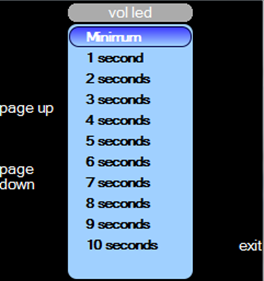
 or
or