Usage


Usage |
|
| Trading and C&C > Netrix > Alarms |
Alarms provide an audible alert telling you of the arrival of an incoming call at your Netrix. You can select which lines you wish to alarm, but only on personal keypages. On shared keypages, the system administrator will configure the alarms. Your alarms settings follow you if you log on to a different Netrix. All changes are saved automatically. If you log out of your Netrix all alarms are suppressed. Three different menus are provided for the setting up and applying of alarms on keys on personal keypages: •the alarms menu allows you to select whether or not alarms are heard on incoming calls for specific call types. •the assign alarms menu allows you to set alarms on individual keys or complete keypages. •the edit profile menu where you can modify Alarm Profiles. An Alarm Profile is selected before alarming keys. The attributes of an Alarm Profile make up the audible alert heard on receipt of an incoming call.
Opening the alarms menupress alarms …on the Netrix menu Muting all alarmsIf pressed, temporarily mutes audible alarms on all alarmed keys at the Netrix until a new alarmed call is presented. press mute alarm …on the alarms menu Turning all alarms offWhen deselected, all audible alarms are turned off for all alarmed keys on all keypages. This is a toggle-action key, press again to turn alarms back on for the keys that are alarmed. press alarms on Audible alarms if busy on a callWhen selected, if you are busy on your handset, and another incoming call is received at your Netrix, audible alarms are still heard for all lines that are alarmed. This is a toggle-action key, press again to turn off alarms if busy on handset. When this option is turned off, the setting under each alarm-profile can selectively enable ringing of calls only for selected lines. press alarm busy Ring all callsIf selected, alarms all un-alarmed keys with the default Alarm Profile. If you remove this option it does not affect the original alarm setting of keys. Previously un-alarmed keys are no longer alarmed and the ones that were previously alarmed, will retain their settings. This is a toggle-action key, press again to turn off alarms on all calls. press ring all calls Closing the alarms menupress ok …the Netrix menu is displayed Assign alarmspress alarms …in the Netrix menu press assign …the assign alarms menu is displayed Applying alarms to individual LinesYou can alarm individual lines on personal keypages. The system administrator will alarms lines on shared keypages. You cannot alarm Speed dial keys. You need to ensure that the correct Alarm Profile is selected before you select the keys to alarm. If a key is currently alarmed with a different Alarm Profile to the one selected in the list, pressing the key removes the previous alarm profile assigned, pressing it again applies the new Alarm Profile.
With the alarms menu displayed: press …to highlight the alarm profile to use press line key(s) …lines to be alarmed indicator red-on key label Default/Silence …dependent on alarm profile selected Netrix displays the following message if you select a key which cannot be alarmed: message This key cannot be alarmed Removing alarms from individual LinesThe red indicator is lit and the status label shows the profile type the key is alarmed with for those keys that are already alarmed.
With the alarms menu displayed: press line key(s) …line keys whose alarm is to be removed indicator off Alarming all keys on this keypageAlarms all keys on the personal keypage currently being viewed. You can alarm line keys but cannot alarm Speed Dial keys. Note that if no key is pressed after selecting the Alarm Page key, you are returned to the Netrix menu after 30 seconds.
With the alarms menu displayed: press …to highlight the alarm profile to use press assign …to display alarms assign menu press alarm page prompt Hit key on line bank (with personal keypage displayed) press line key …on the LM20 whose keypage is to be alarmed indicator red-on label Default/Silence …dependent on profile selected Removing all alarms on this keypageRemoves all alarms on alarmed keys on the currently viewed personal keypage. Press any line key on the LM20 whose personal keypage you wish to remove alarms from. Note that if no key is pressed after selecting disalarm all you are returned to the Netrix Menu after 30 seconds. With the alarms menu displayed: press assign …to display alarms assign menu press disalarm page prompt Hit key on line bank (with personal keypage displayed) press line key …on LM20 whose keypage is to be disalarmed indicators off Removing alarms on all keypagesRemoves all audible alarms from all alarmed keys on personal keypages at this Netrix. Note, you cannot undo this change, you will have to manually alarm the keys again. With the alarms menu displayed: press assign …to display alarms assign menu press disalarm all prompt Disalarm all? press OK ...to confirm or press Abort …to abort Setting an alarm profile as the defaultYou can set an alarm profile as the default. This default profile is used when you select ring all calls. With the alarms menu displayed: press assign …to display alarms assign menu press …to highlight the alarm profile to set as default press set as default Playing the ring toneAllows you to listen to the ring tone for the selected alarm profile. This is a toggle-action key, press again to stop playing the alarm profile. With the alarms menu displayed: press …to highlight the alarm profile to play press play tone …the ring tone of selected profile is played Selecting an alarm profile to modifyTo modify any of the attributes of an alarm profile you must select the Alarm Profile first. The following 3 profiles: Default, Silent, Silent Incoming are system provided default alarm profiles. If you modify these, and changes will not be saved. Your system administrator will create additional alarm profiles for you to modify and use. press alarms press assign …the alarms menu is displayed press …to highlight the alarm profile to modify press edit profile …the edit profile menu is displayed When you open the edit profile menu it lists all the alarm tones available. The tone currently used by this alarm profile is highlighted. Changing the ring toneThe ring tone is the audible alarm heard on the arrival of an incoming call on the alarmed key. There are 15 different ring tones you can choose from. Ensure you have selected the correct alarm profile to change the tone for in the assign alarms menu. With the edit profile menu displayed: press …to highlight the tone to use press play …to listen to the selected tone Audible alarms if busy on a callThis option can be changed only if the global alarm-busy is turned off. This option allows you to have selected lines to ring when you are on another call on a handset. When selected, if you are busy on your handset, and another incoming call is received on the selected line, audible alarms will be heard. This is a toggle-action key, press again to turn off alarms if busy on handset. press alarm busy
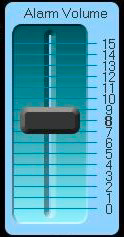
Changing the Alarm volumeThe volume setting defines how loud the ring tone is. There are 15 different alarm volume levels, with 0 being the quietest through to 15 being the loudest. The current setting for the alarm volume is displayed under the volume key in the edit profile menu. With the edit profile menu displayed: press volume …the alarm volume bar is displayed
press …to increase or decrease the alarm volume press play …to listen to the selected tone press ok …to confirm and close the alarm volume bar Changing the alert modeThe alert mode defines how the tone rings or when the tone commences. The current setting for the alert mode is displayed under the cadence key in the edit profile menu. You can choose from 13 different alert modes. They range from no ring through to non-stop ring mode. Ensure you have selected the correct alarm profile to change the mode for in the assign alarms menu. With the edit profile menu displayed: press cadence …the cadence menu is displayed press ...to highlight the mode to use press exit …to confirm Alert modes
Closing the assign alarms menupress ok …the Netrix menu is displayed …or wait for the timeout to expire
|
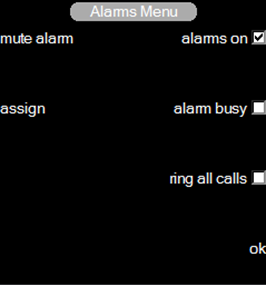
 …audible alarms are turned on
 or
or