SBC AudioCodes Firmware Upgrade


SBC AudioCodes Firmware Upgrade |
|
| Solution Integration > Session Border Controllers > Audiocodes |
Firmware UpgradeOpen a browser and enter the SBC management IP address.
Login using Admin/Admin
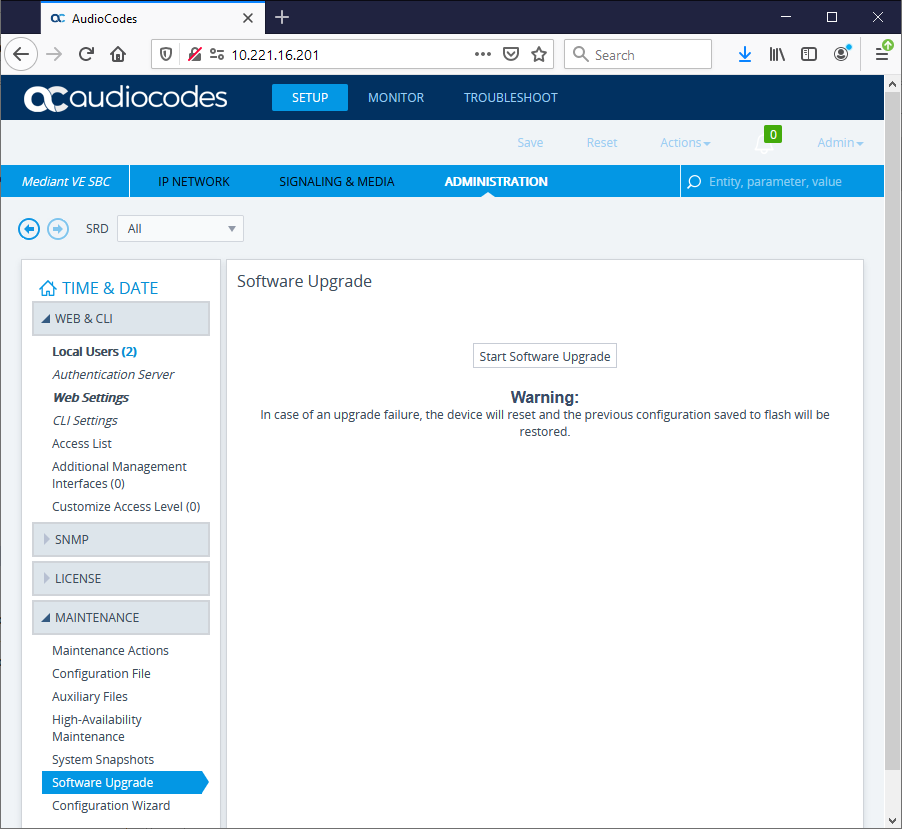
Navigate to Setup/Administration/Maintenance/Software Upgrade and click on ‘Start Software
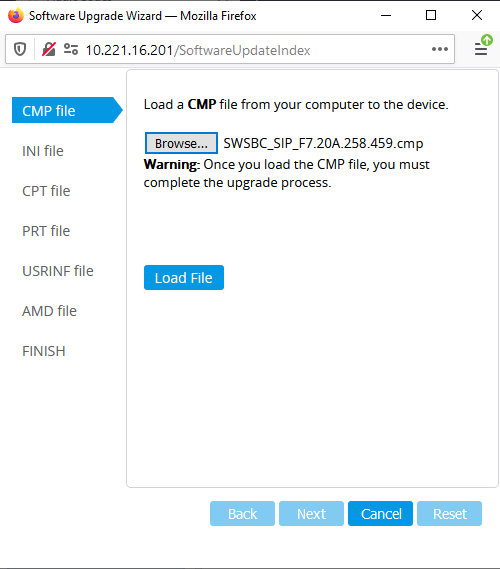
A File dialog box will appear to allow you to navigate to where you have downloaded the firmware upgrade which is available on BTExtranet Click the ‘Choose file’ button and browse to where you have download the SWSBC_SIPXXX.cmp file and click ‘Load file’ as below:
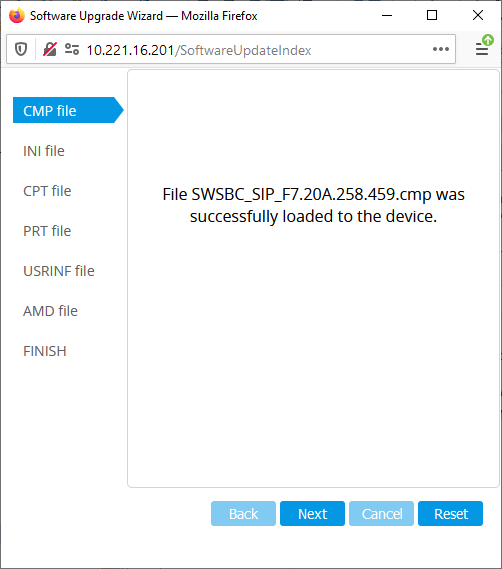
The file will then load this can take a while 2 - 3 mins depending on the size of the upgrade Once the file has loaded click on the ‘Reset’ button to apply the new firmware and restart the SBC as below
The SBC will now burn in the new software this may take after several minutes the SBC will reset during this process to load and run the new code
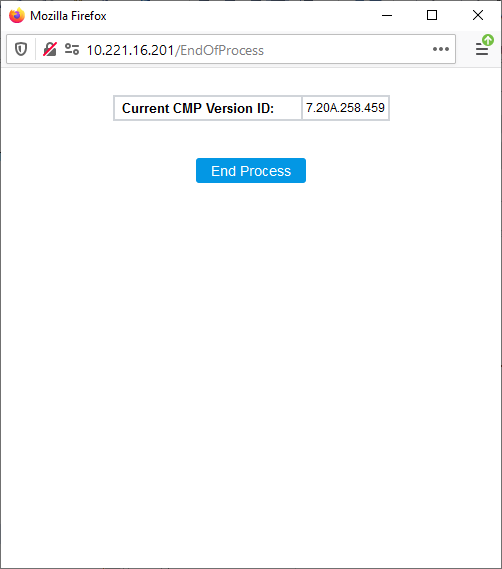
Once the firmware upgrade will complete and the verification page will be displayed.
Click on ‘End Process’ to complete the upgrade as below:
To verify the software that is running go to management address and log in Admin/Admin then if you hover over the Mediant VE SBC with the mouse pointer the current running version swill be displayed as shown
|