ReplayBox Verint Installation


ReplayBox Verint Installation |
|
| Solution Installation > ReplayBox Installation |
IntroductionThis section describes how to install Verint ReplayBox.
PrerequisitesPrograms Following programs must be installed to run ReplayBox Verint properly: •Windows Server 2012 R2, Windows Server 2016 (please refer to TSS installation to have all required components properly installed) •Microsoft Visual C++ 2010 Redistributable Package (x86) •Microsoft Visual C++ 2010 Redistributable Package (x64) •Microsoft Visual C++ 2013 Redistributable Package (x64) •Microsoft Visual C++ 2017 Redistributable Package (x64) •Microsoft .NET Framework 4.6.1 •IIS 8.5 •Verint system (API 15.2)
Uninstall all previous ReplayBox version It is recommended to uninstall the ReplayBox Verint before installing another version. To uninstall the ReplayBox from the system: •Open Control Panel > Programs and Feature •Select IptradeNet.ReplayboxVerint from the list •Click Uninstall
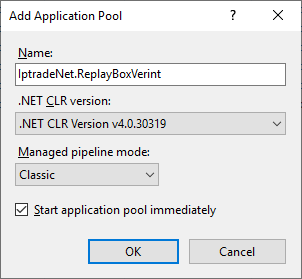
Create specific application pool It is preferable to create an application pool reserved to the Replaybox. •Open Control Panel > Administrative Tools > Internet Information Services (IIS) Manager. •Right click on Application Pools node > Add Application Pool... •Set Name = IptradeNet.ReplayBoxVerint •Set .NET Framework version = .NET Framework v4.0.30319 •Set Managed pipeline mode = Classic •Press OK button
If your system is 64-bits version please do additional steps: •Select application pool IptradeNet.ReplayBoxVerint (previously created) •Click on Advanced Settings... •Set Enable 32-Bit Application = True •Press OK button
Once application pool is created change identity user: •Select application pool IptradeNet.ReplayBoxVerint (previously created) •Click on Advanced Settings... •Set Identity = Network Service •Press OK button
Check ISAPI and CGI restriction It is necessary to allow ISAPI filter to execute extension .s properly. •Open Control Panel > Administrative Tools > Internet Information Services (IIS) Manager •Select server node > ISAPI and CGI restriction •Right click on ASP .NET v2.0.50727 > Allow (for 32-bits version) •Right click on ASP .NET v2.0.50727 > Allow (for 64-bits version)
ReplayBox InstallationRight click on the setup.exe file > Run as administrator and follow the wizard:
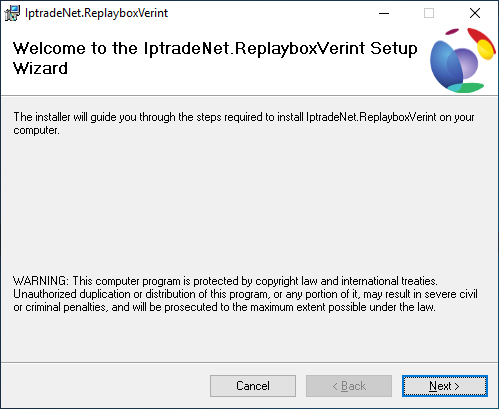
Click Next button.
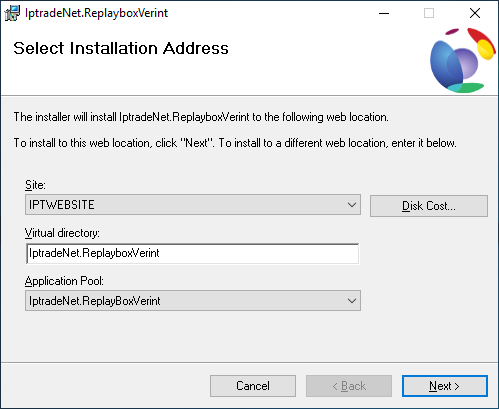
Select ReplayBoxVerint (previously created) as application pool and press Next button.
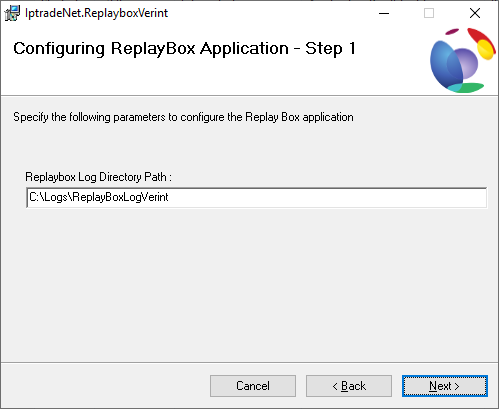
Set the log path and press Next button.
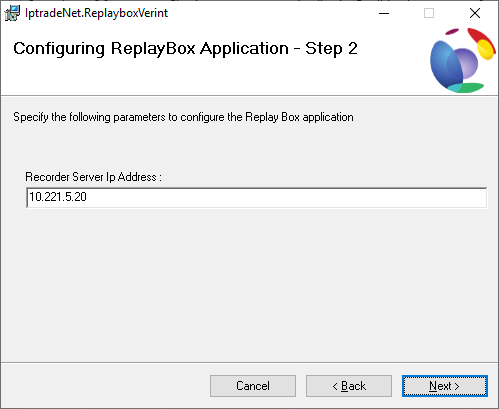
Set Recorder Server IP Address and press Next button.
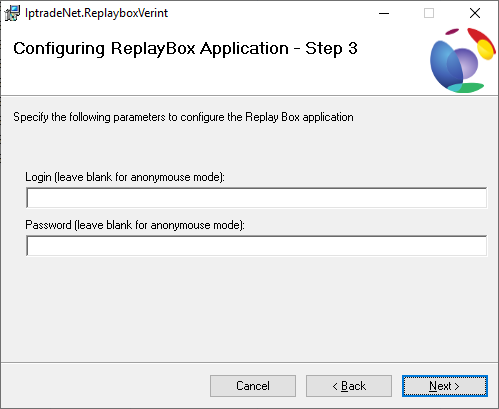
Set Login and Password used to connect to Verint application and press Next button. Leave blank value to use anonymous mode.
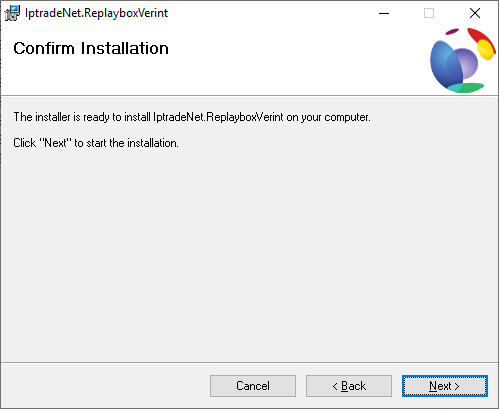
Press Next button to install the ReplayBox.
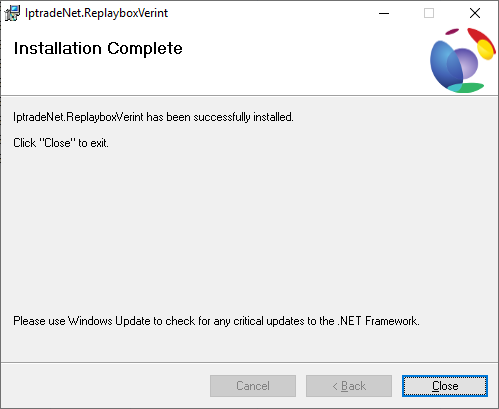
Once this window appeared, installation is complete.
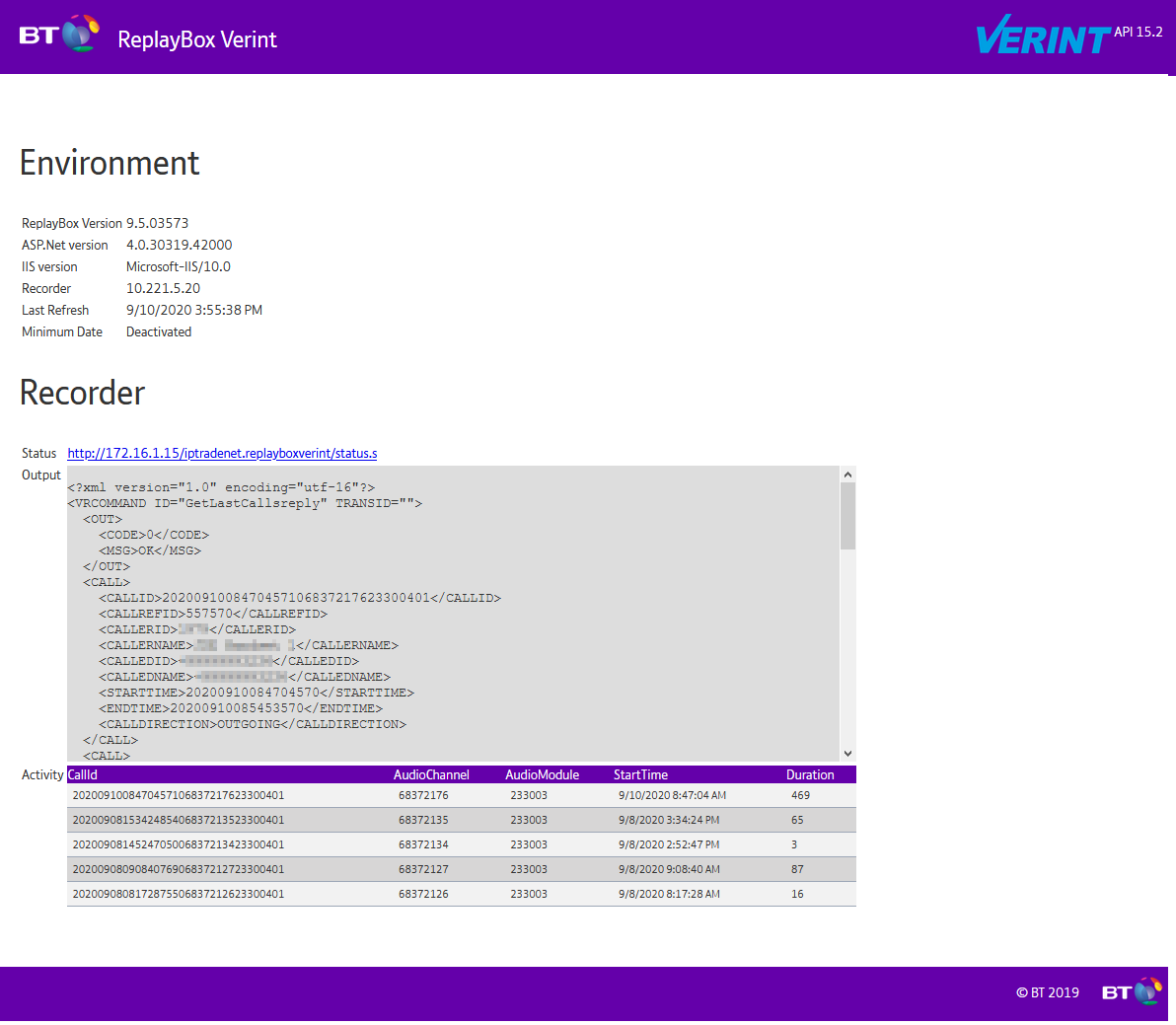
Open your web browser and enter following address (can change depending of your configuration): http://localhost/IptradeNet.ReplayboxVerint This will open default page and get latest calls of system:
ConfigurationThe ReplayBox configuration can be changed by editing web.config file present in installation folder (on xml path "configuration/appSettings/"). The application is reloaded immediately after the file is saved.
|