Usage


Usage |
|
| Solution Installation > Package deployment via package on FTP site |
Setting up the FTP repository
An FTP site is required in order to store the device firmware packages, OS upgrade packages and package bundles and make them available for the TSS.
Any FTP site is OK: the TSS will ask for a directory to browse package. This means that the FTP site integrated in the TSS (and already used for package distribution to the devices) can be used.
Create a directory in the FTP site that will be used for packages storage.
Store the package file(s) (cab and zip archives) in that directory.
Open the TSS Console and navigate to System > Firmware Management.
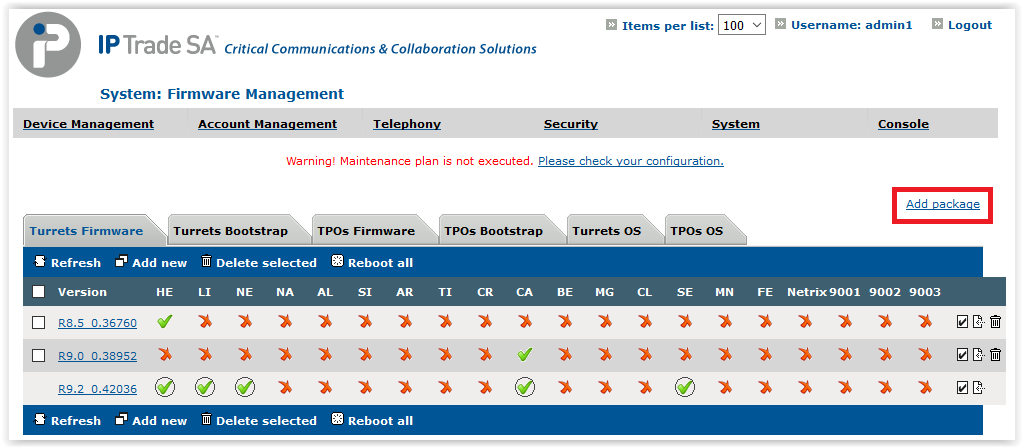
Click Add package.
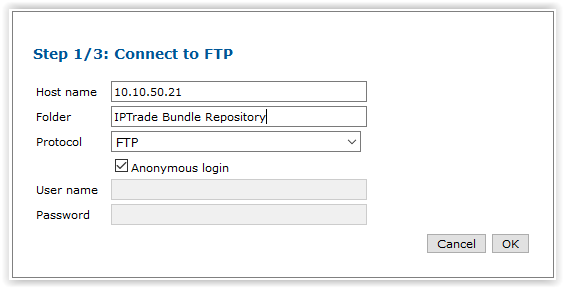
Enter the FTP host name or IP address and the FTP folder.
Select either FTP or FTP over SSL.
Use an anonymous authentication or enter a user name and password.
Press the OK button.
Then, you will choose to add package bundle (zip archive) or device firmware/OS upgrade package (cab archive).
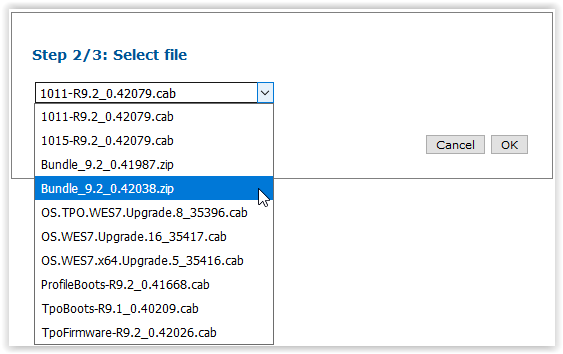
Select the desired bundle file among all the files available and press the OK button.


The system starts downloading the bundle from the FTP site.
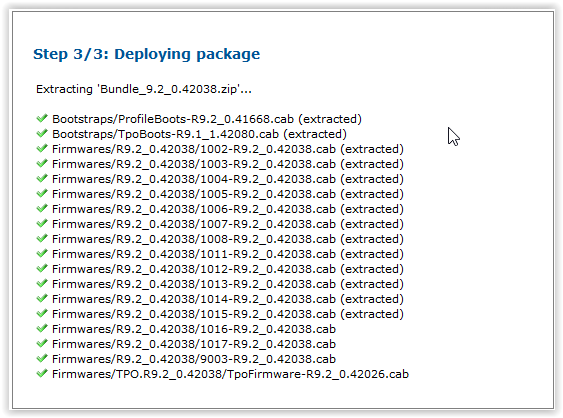
Once the file has been downloaded, the page displays all the packages available and starts extracting them.
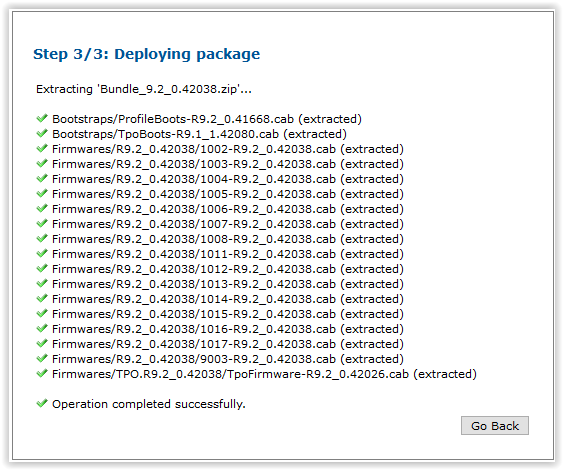
When all the packages have been extracted and deployed in their proper locations, the page indicates that the whole operation is completed. Any error occurring in the deployment process makes the whole operation to be reverted, and no package to be installed.
Press the Go Back button to return to the packages list.
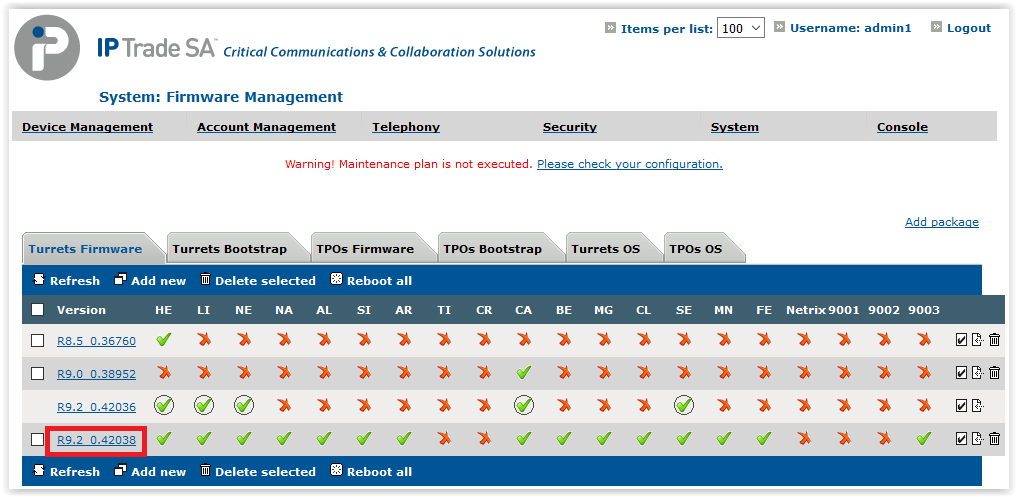
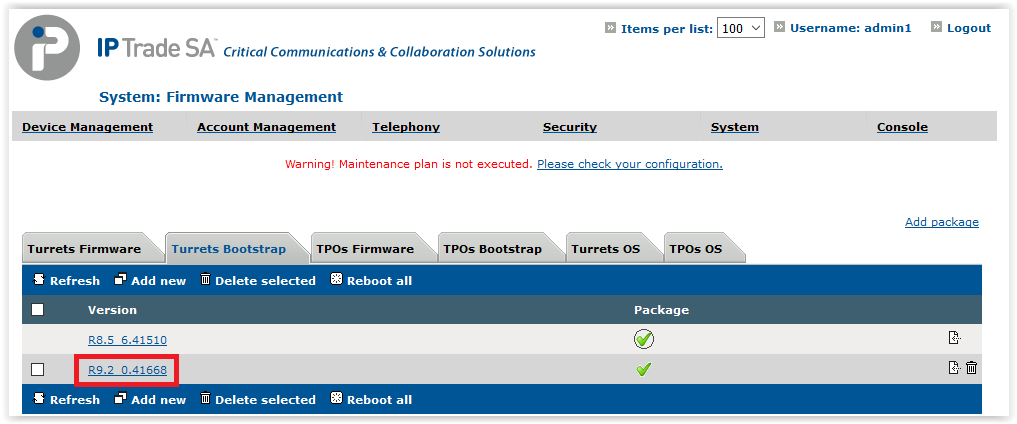
The firmwares are deployed and can be assigned to the devices/zones/... The system does not, however, automatically assigns the new packages except if "Set As Default" option as been checked at step 2, so it is the administrator's responsibility to change the default versions.
2.Add device firmware/OS upgrade package 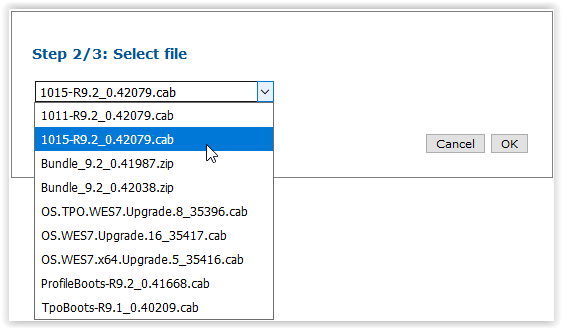
Select the desired device package file among all the files available and press the OK button.


The system starts downloading the package from the FTP site and put it in right location.
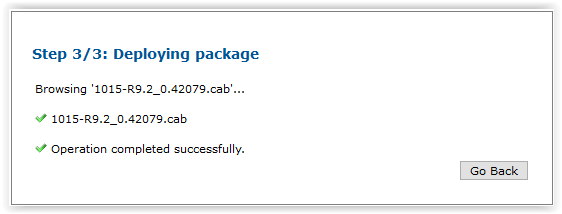
When package has been deployed in its proper location, the page indicates that the operation is completed. Any error occurring in the deployment process makes the operation to be reverted, and package is not installed.
Press the Go Back button to return to the packages list.
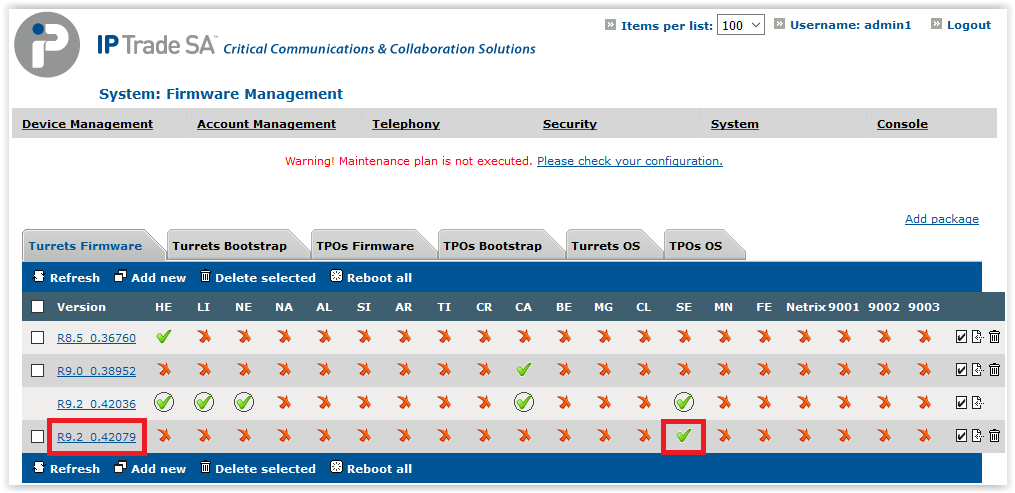
Firmware is deployed and can be assigned to the devices/zones/... The system does not, however, automatically assigns the new packages except if "Set As Default" option as been checked at step 2, so it is the administrator's responsibility to change the default versions.
|