Migration from 9.1 version


Migration from 9.1 version |
|
| Release Notes 10.1 > New Features > Migration |
Custom ringtonesWhen creating custom ringtones, the TSS performs some audio conversions. To be able to convert an MP3 audio file to the right WAV format, the TSS uses the ACM MP3 codec that is present on almost all consumer versions of Windows. However, it is important to note that some versions of Windows Server do not have this codec installed without installing the "Desktop Experience" component.
Desktop Experience is an all-or-nothing feature, so you can’t choose which components to install. Before adding the Desktop Experience feature on Windows Server, I recommend that you test in a preproduction lab environment to ensure that Desktop Experience doesn’t conflict with any important server functions. Install Desktop Experience feature on Windows Server 2012 Using the GUI
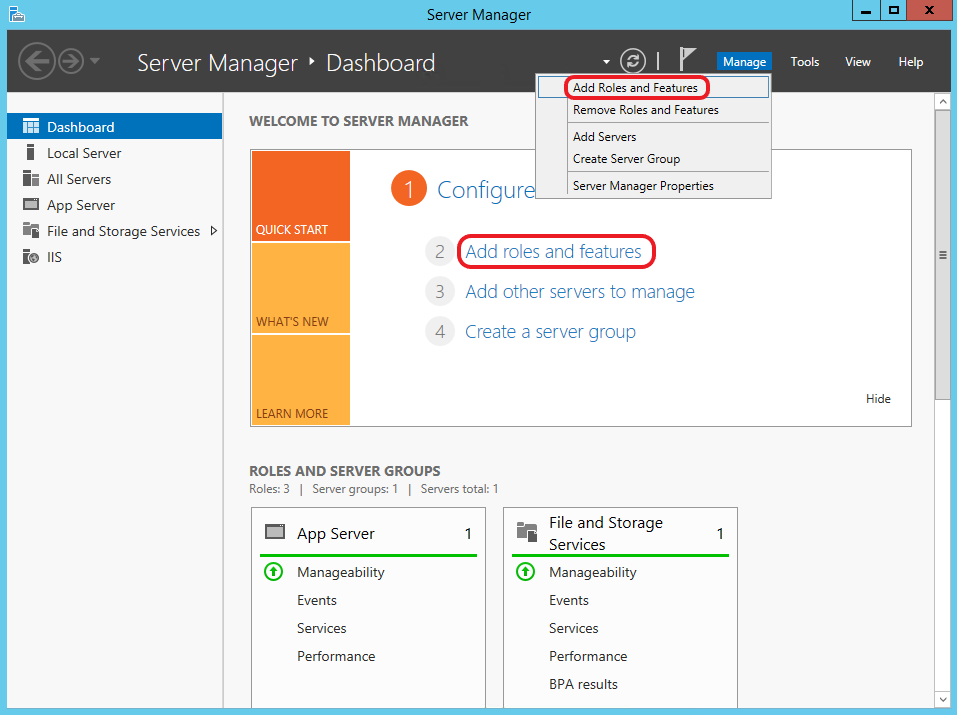
•Log on to Windows Server 2012 with an account that has local administrator permissions. •Open Server Manager from the Start screen or the icon on the desktop taskbar. •In Server Manager Dashboard, click Add Roles and Features under Welcome to Server Manager or in Manage Menu.
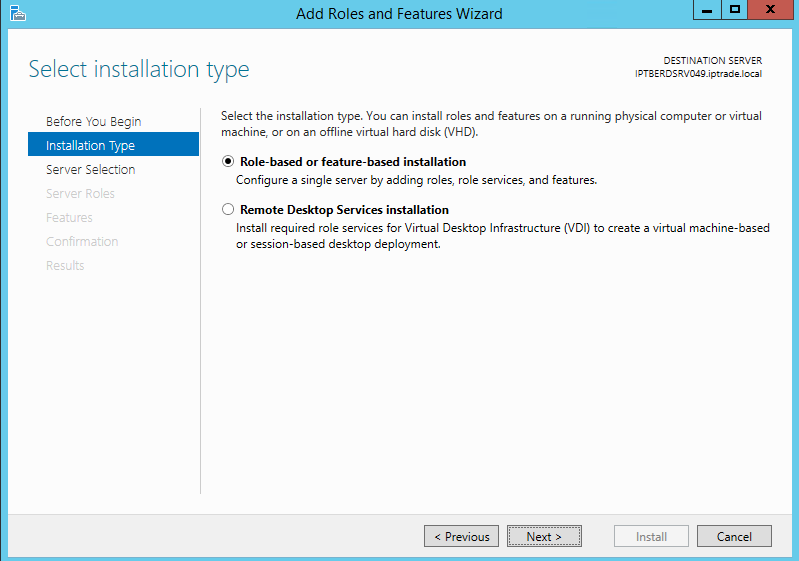
•On the Select Installation Type page, select Role-based or feature-based installation and click Next.
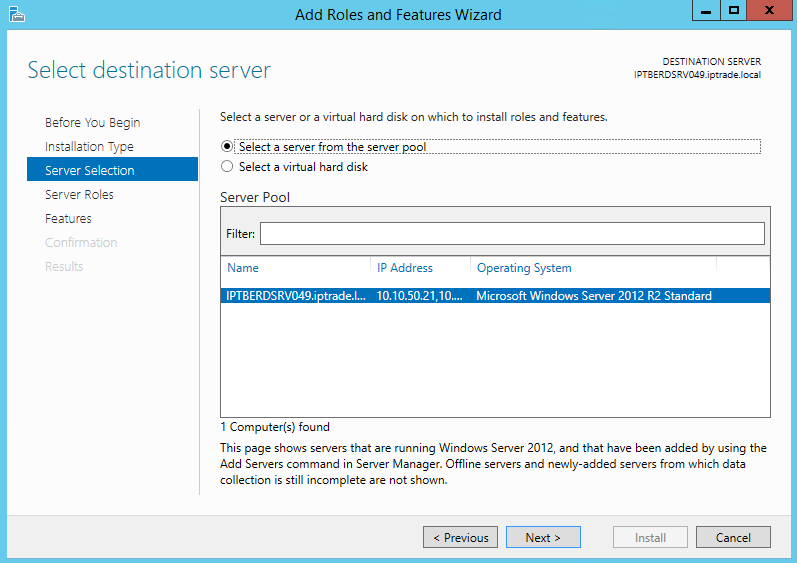
•On the Select Destination Server page, select a server and click Next.
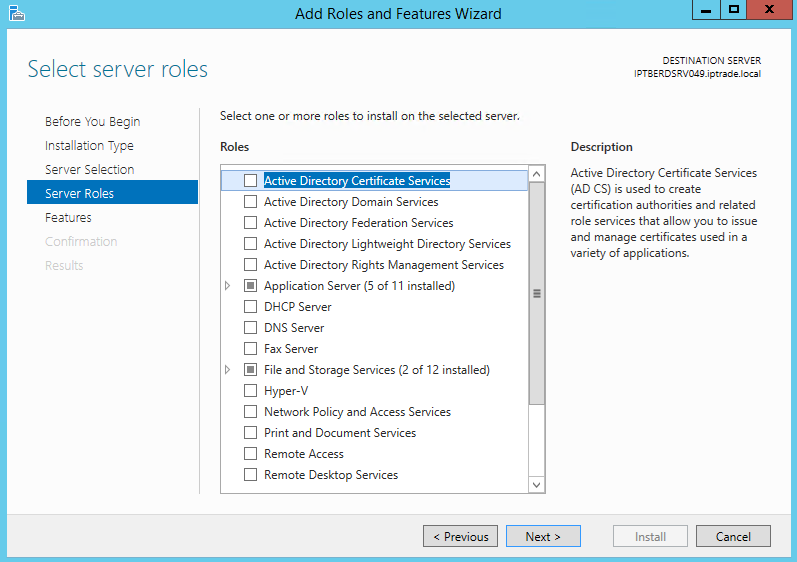
•On the Select Server Roles page, accept the default selection and click Next.
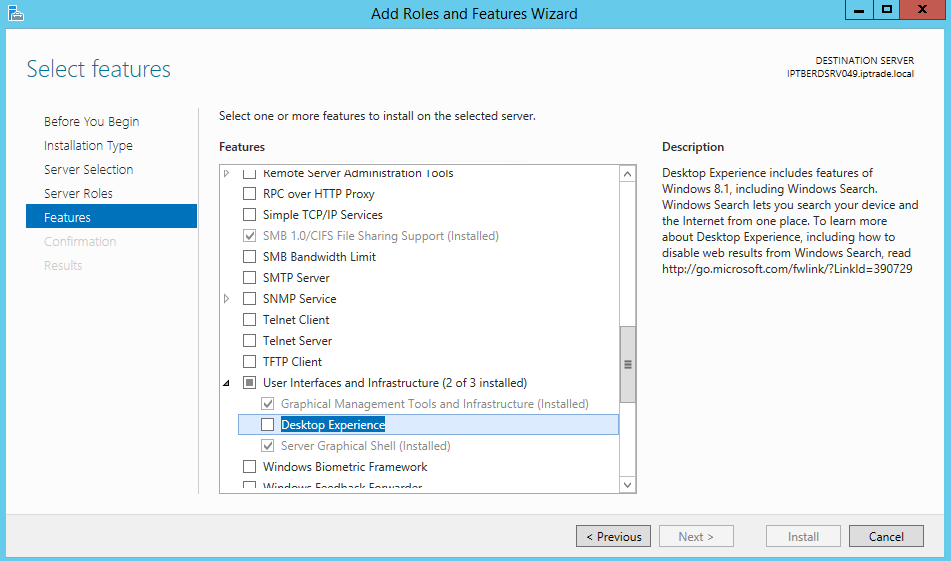
•On the Select Features page, Scroll down the list of features and expand User Interfaces and Infrastructure. •Check Desktop Experience.
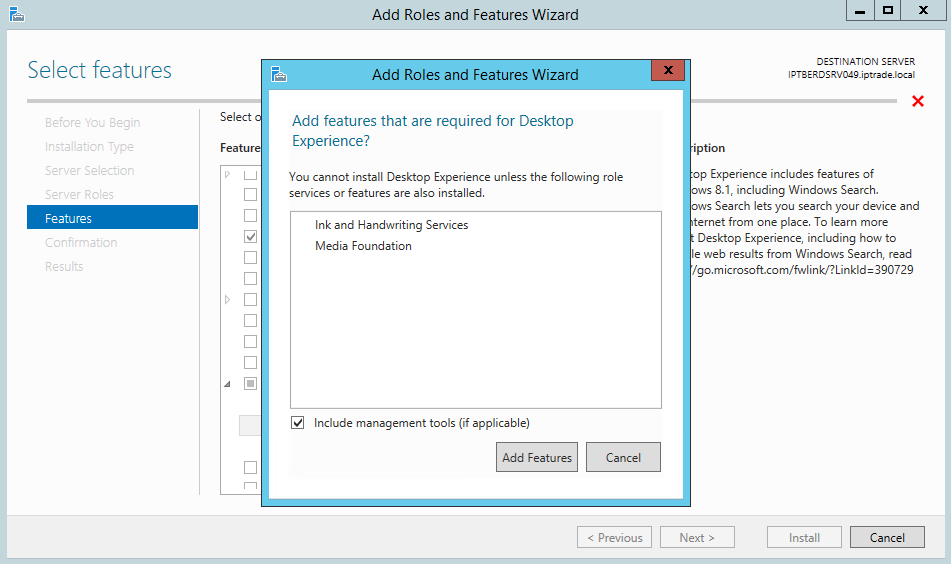
•In the pop-up dialog, click Add Features to add Ink and Handwriting Services and Media Foundation.
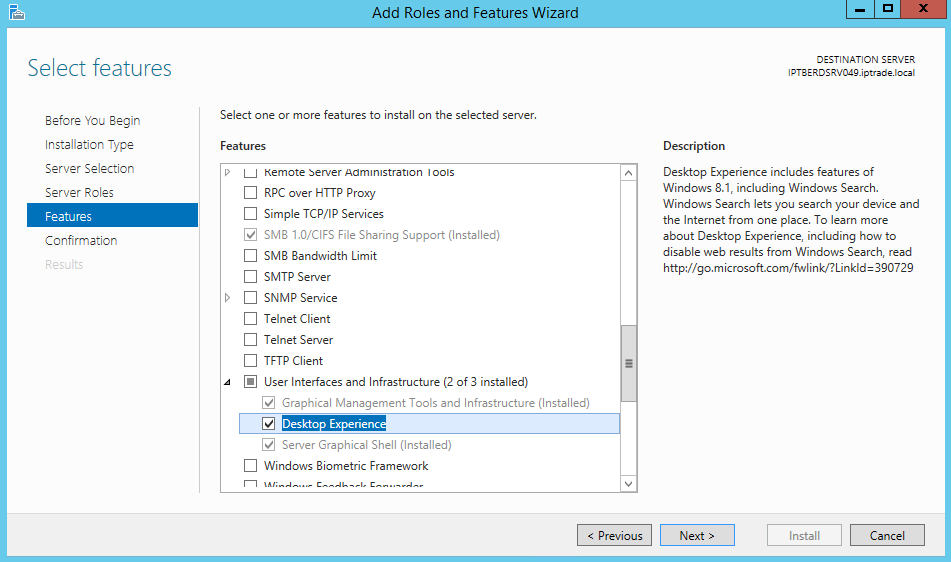
•On the Select Features page, Desktop Experience is now checked. Click Next.
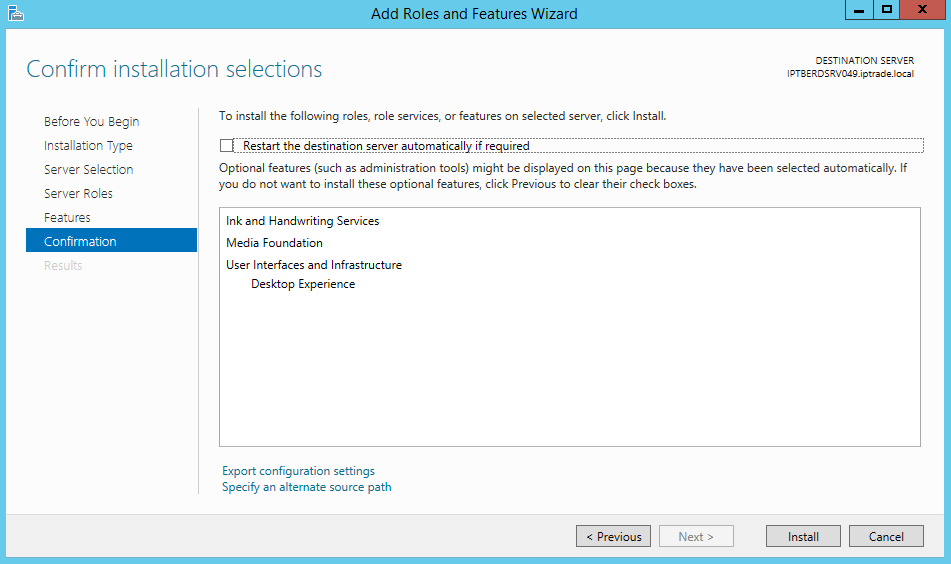
•Click Install on the confirmation page.
•When Desktop Experience has finished installing, click Close in the Add Roles and Features Wizard and restart the server. Once the server has rebooted, you will have access to the desktop features from the Start screen.
Screen savers, turret backgrounds and shortcut page map backgrounds
|