Silent install


Silent install |
|
| Solution Installation > Turret/Console Installation > FlexCom installation |
There are two ways to install the FlexCom in silent mode :
Command line installation
To install the FlexCom, use the msiexec utility on command line (with Administrator privileges) :
msiexec /i "PATH" /qn CB_NETWORKADAPTER_PROP="XXX" EDT_FTPPRIMARY_PROP="YYY" [EDT_FTPSECONDARY_PROP="ZZZ"]
Where : •PATH is the path of the msi •XXX is the network adapter to select (mandatory) •YYY is the primary FTP address (mandatory) •ZZZ is the secondary FTP address (optional)
e.g. :
msiexec /i "C:\FlexProInstaller.msi" /qn CB_NETWORKADAPTER_PROP="Local Area Connection" EDT_FTPPRIMARY_PROP="10.10.6.170" EDT_FTPSECONDARY_PROP="10.10.6.180"
Please note that the primary and secondary FTP server addresses are, most of the time, the same as the primary and secondary TSS server addresses. Group Policy Object installation
To install the FlexCom with a GPO, a MST file must be created with the wanted configuration.
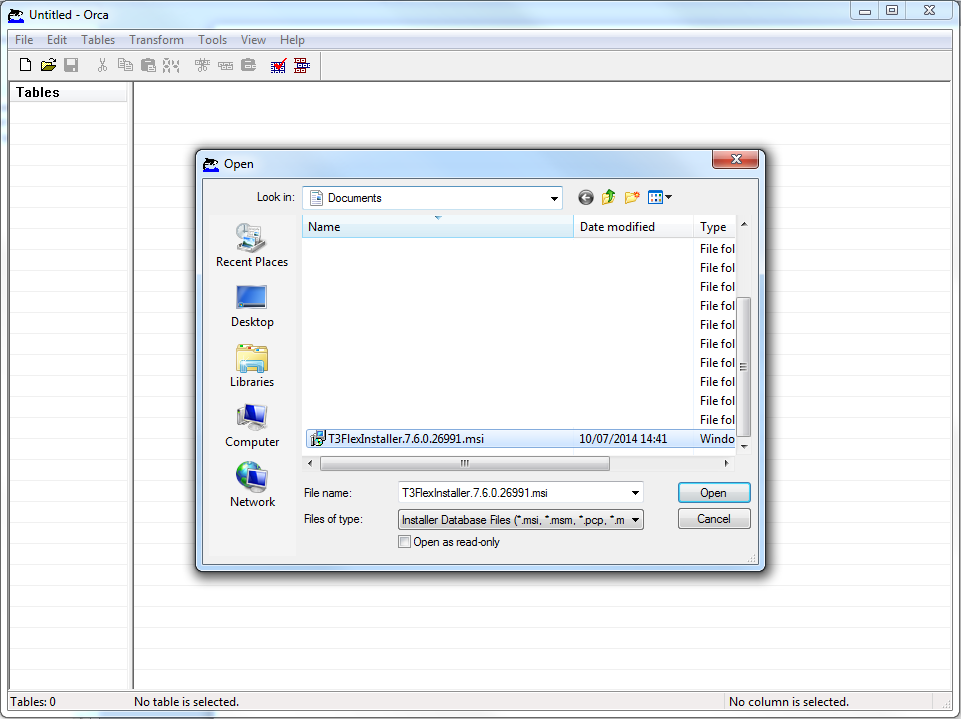
Open the MSI with a tool like ORCA (free MS tool in Windows SDK Components for Windows Installer Developers) :
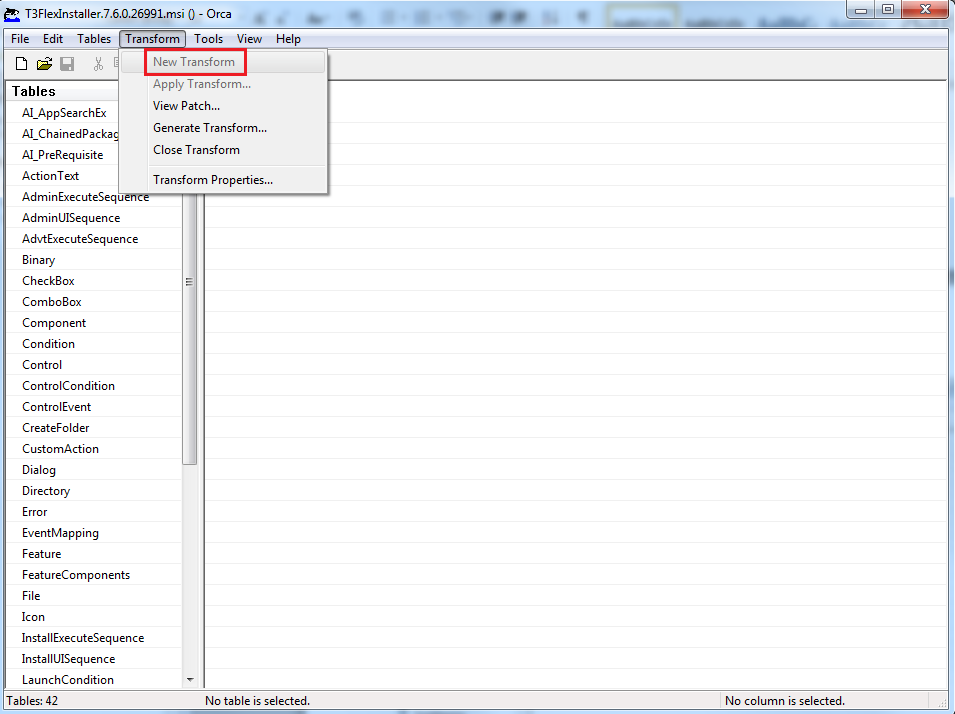
Go to "Transform" > "New Transform" :
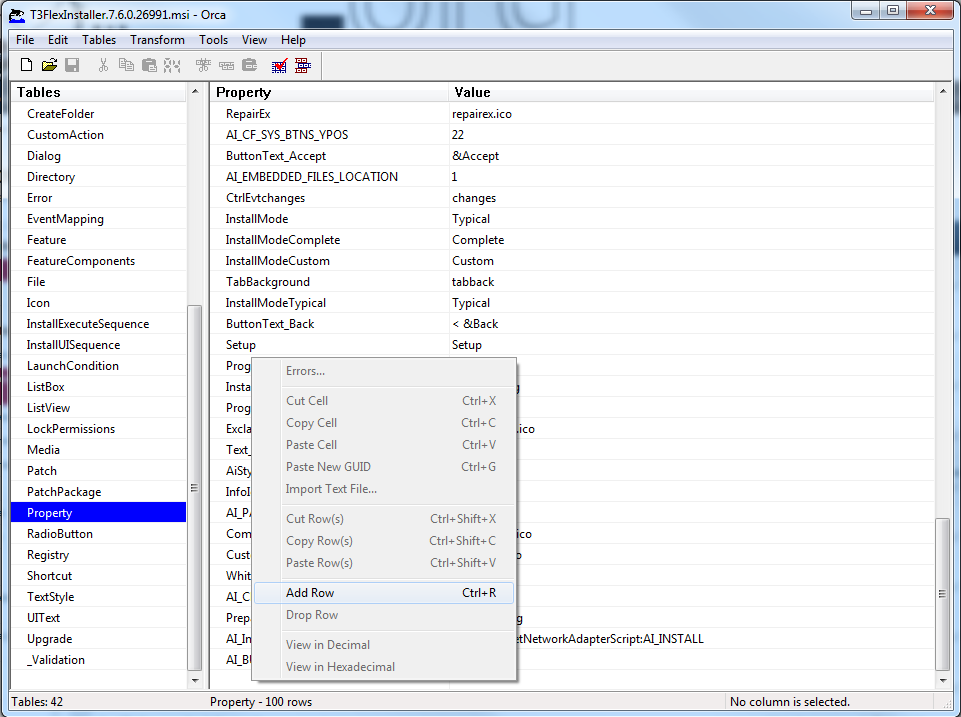
Click on "Property" table. Click somewhere in the right pane and click on "Add Row" :
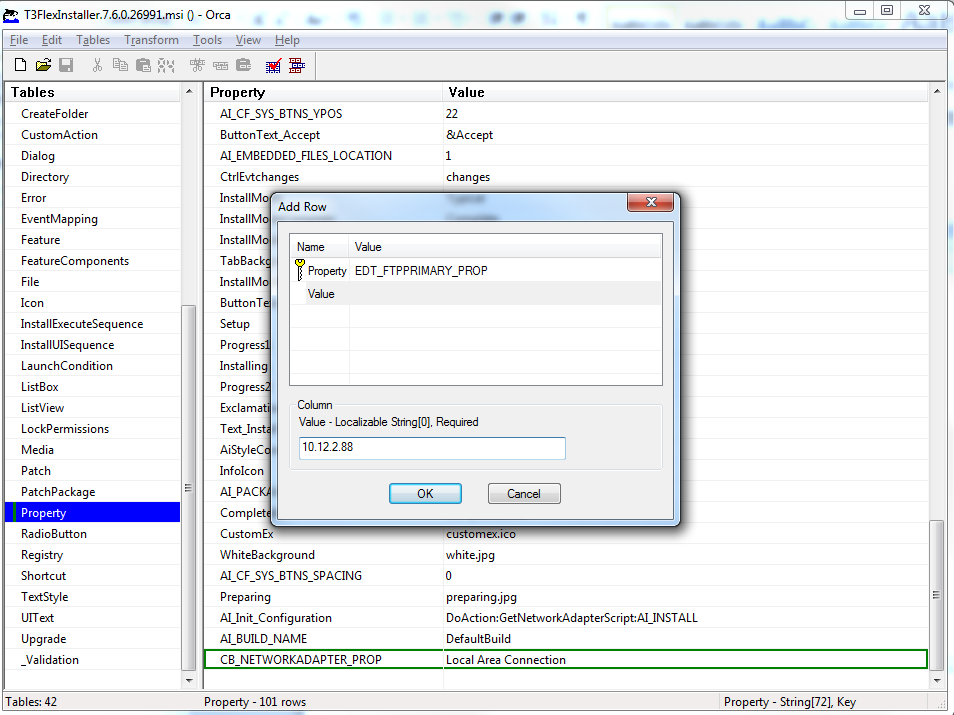
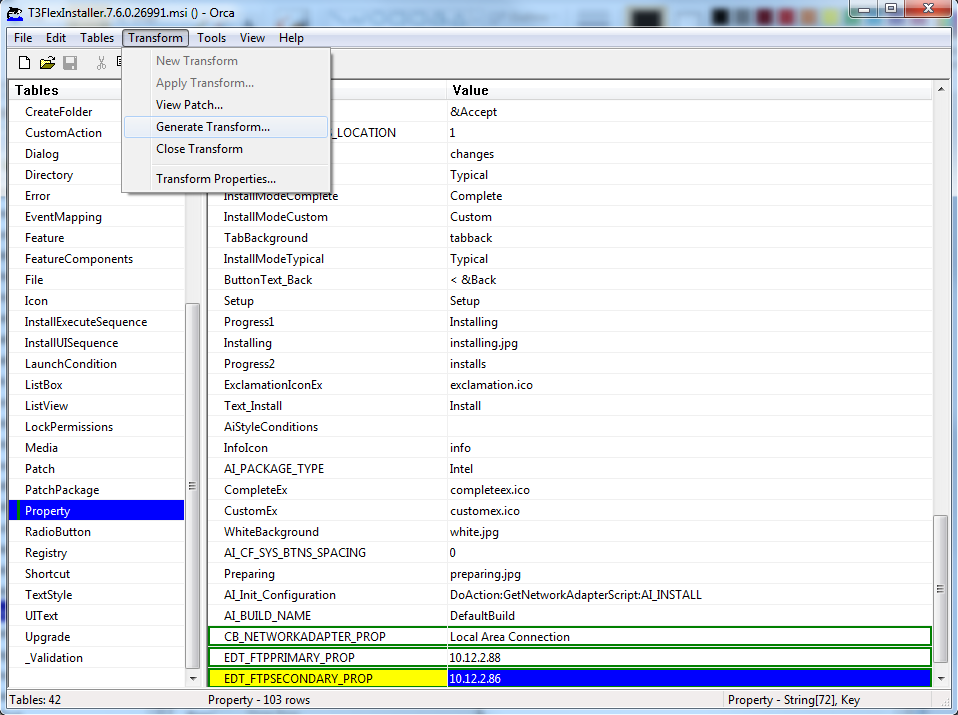
Add the following rows : •CB_NETWORKADAPTER_PROP = XXX •EDT_FTPPRIMARY_PROP = YYY •EDT_FTPSECONDARY_PROP = ZZZ
Where : •XXX is the network adapter to select (mandatory) •YYY is the primary FTP address (mandatory) •ZZZ is the secondary FTP address (optional)
Once rows are added, click on "Transform" > "Generate Transform..." :
After saving MST file, close ORCA. Be sure that the computer account of the workstations will have a read access of the MST file.
On domain controler, open "Administrative Tools" > "Active Directory Administrative Center" and create an Organization Unit for the workstations where FlexCom will be installed.
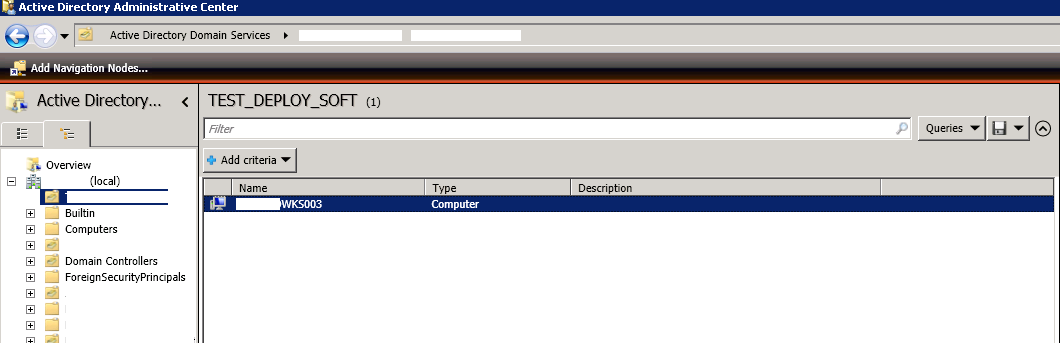
Move the related computer account(s) on the Organization Unit :
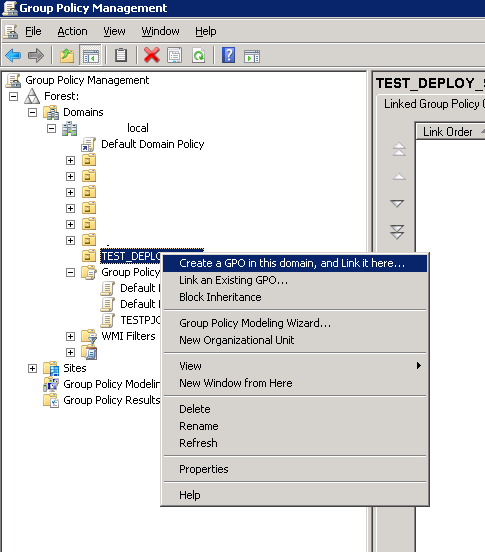
Open "Administrative Tools" > "Group Policy Management" and create a new Group Policy Object for this Organization Unit :
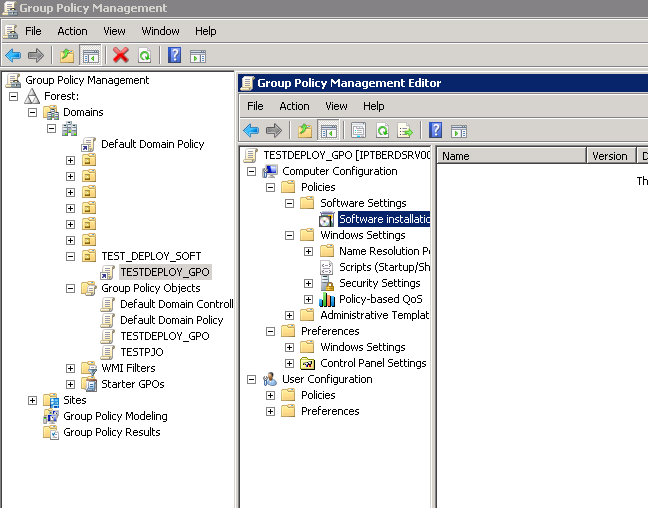
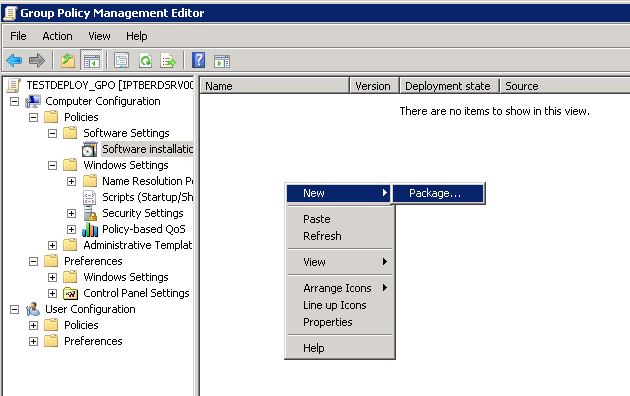
Right click on the new GPO and click on "Edit". Go to "Computer Configuration" > "Policies" > "Software Settings" > "Software Installation" :
Right click on the right panel and select "New" > "Package" :
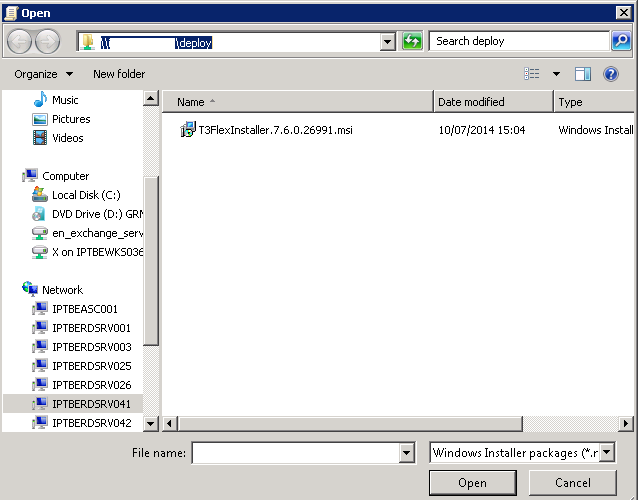
Select the MSI file through the shared folder :
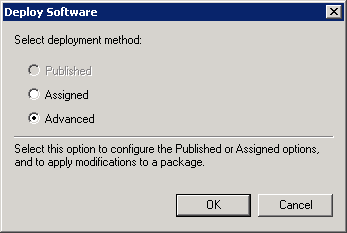
In "Deploy Software" dialog, select "Advanced" option :
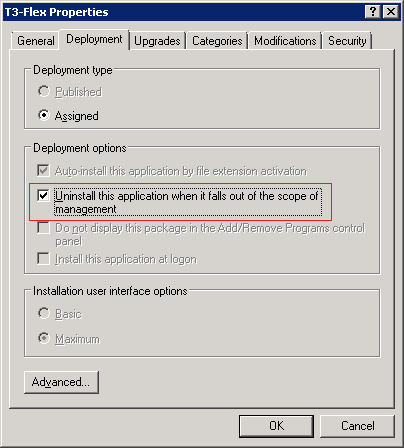
Go to "Deployement" tab and on "Deployement options" group, select "Uninstall this application when it falls out of the scope of management" :
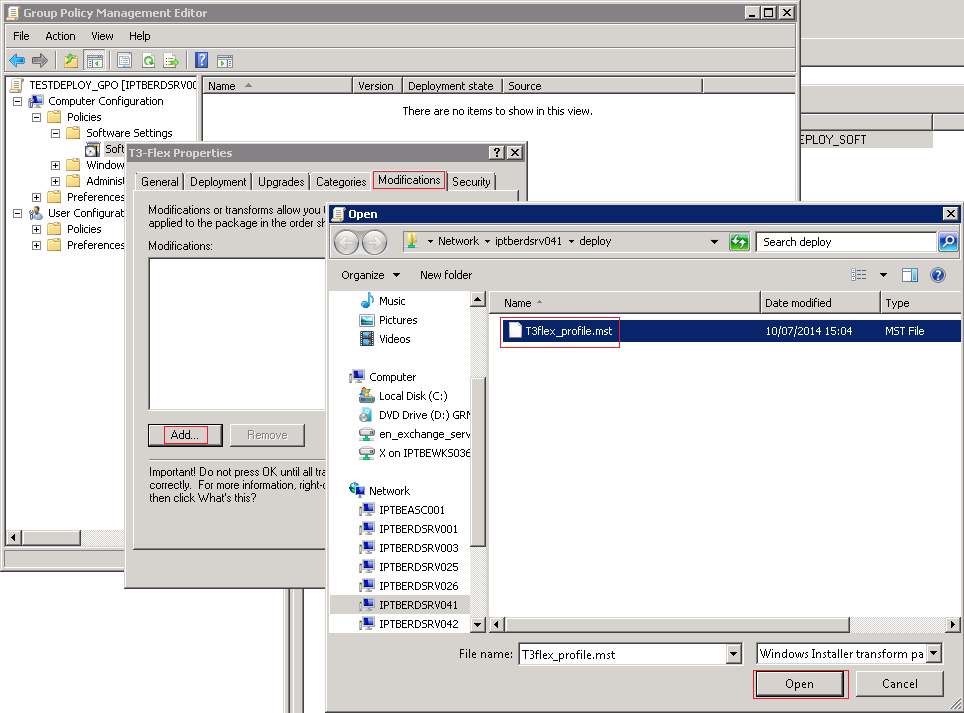
Go to "Modifications" tab and Click to "Add..." button. Select the MST file previously created :
The installation/uninstallation will start after reboot. |