Bulk Administration


Bulk Administration |
|
| IT&Operations > Bulk Administration & Provisioning |
Bulk administration allows the IT to perform multiples operations on a large selection of objects at once, like changing line's ringtone configuration or deleting several devices.
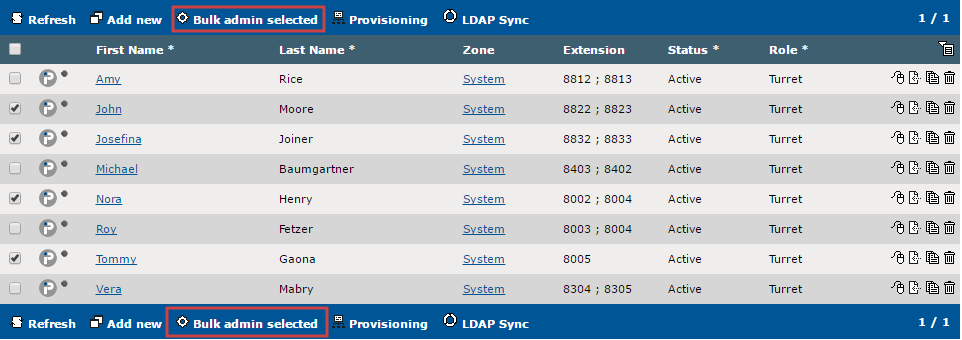
Available in several lists in the TSS console, the Bulk admin selected button is used to access a dedicated bulk administration page. •At least one item needs to be selected in the list;
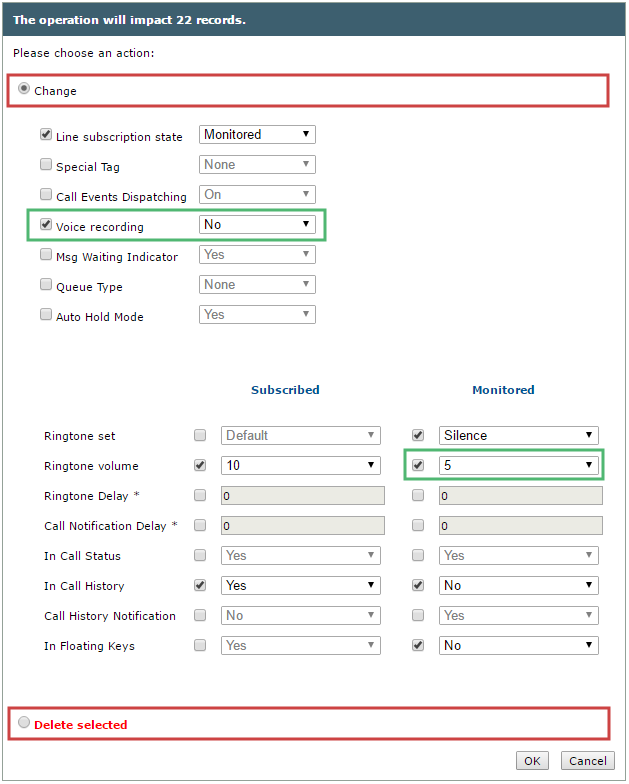
The new bulk administration page first indicates how many objects will be affected by the operation.
The available main operations for the selected objects are listed in a radio-buttons list (circled in red) . Only one main operation can be selected per bulk administration. Some main operations, like the "change" one, may have several sub-operations (some circled in green) each associated to a check box. Multiple sub-actions can be selected per bulk administration.
These (sub-)operation depend on what is selected: if a specific (sub-)operation does not apply to or is not permitted for one of the selected items, this (sub-)operation will not be listed.
Press OK button to validate changes or Cancel to get back to the list without any action performed.
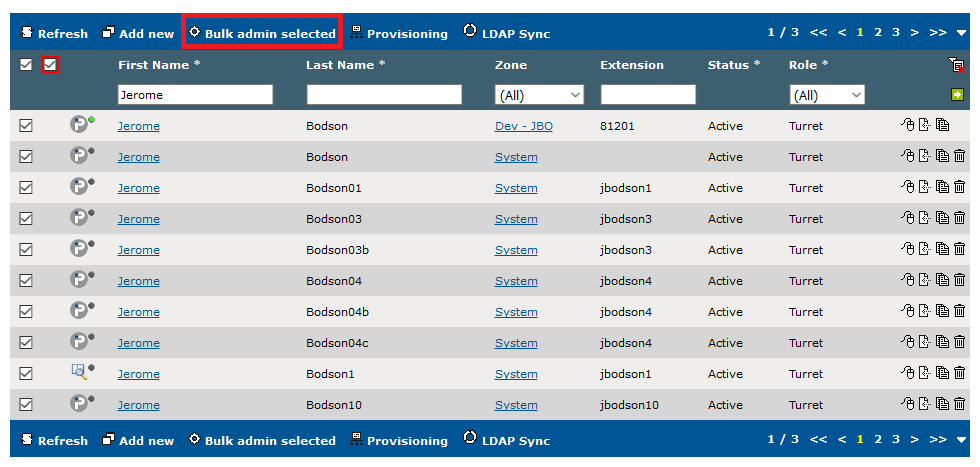
Bulk Admimistration filter matched itemsWhen filtering a list, a result set of multiple pages can be returned. The possibility is given to the administrator to apply bulk operations on this entire result set.
After having applied one or multiple filter values, the administrator can check the global check box of this list. A red bordered check box will appear to offer him the possibility to select all items matching its filter whether they are currently visible or not.
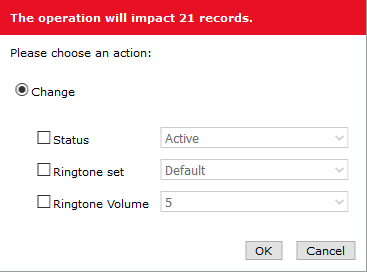
Once this check box is also checked, clicking on the "Bulk admin selected" action will lead to the bulk administration dedicated page described above. Note how the operation box header is filled in red to warn that the chosen operation will also apply on non displayed items.
|