Scripted Install


Scripted Install |
|
| Solution Installation > TPO Installation > TPOSTD Server Scripted Install |
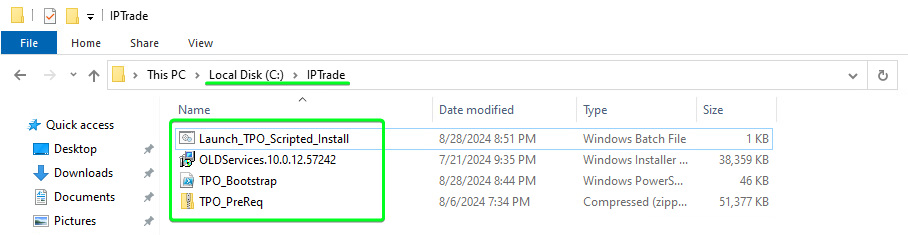
Script requirement and stagingDownload the required files: Extranet > Content > Firmware > Platform > Standard server – Scripted Install > TPO “Launch_TPO_Scripted_Install.bat”, “TPO_Bootstrap.ps1” and “TPO_PreReq.zip” In addition, also download the TPO firmware installer version of your choice “OLDServices.xxx.msi”
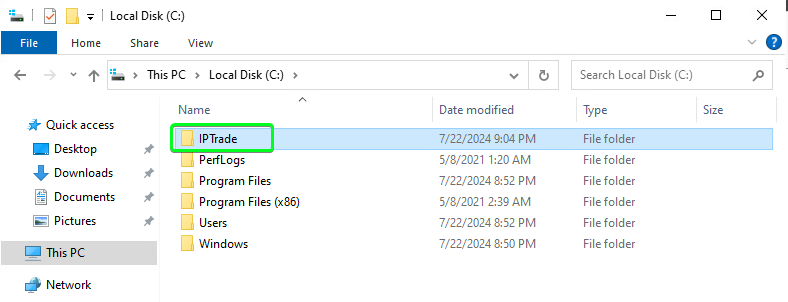
Create a folder called “IPTrade” in the root of C:\
Copy the downloaded files into the newly created folder C:\IPTrade\
Launching the scripted install
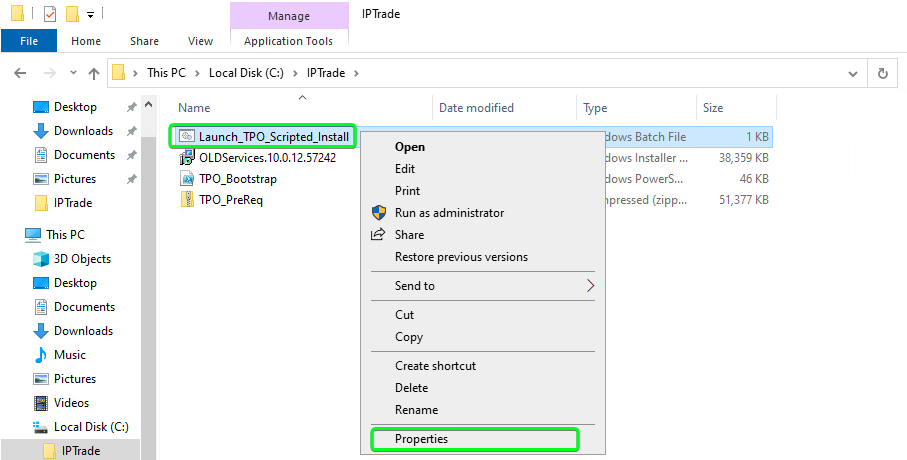
Right click on the “Launch_TPO_Scripted_Install.bat” file and select “Properties”
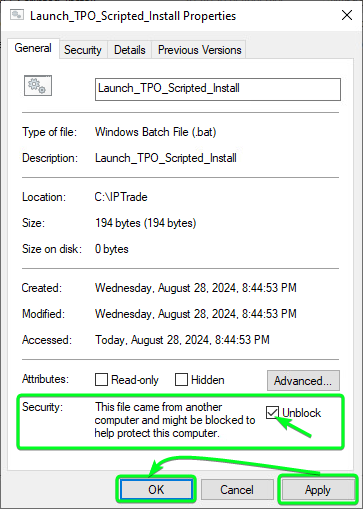
In the “General” tab, click “Unblock” to allow the launcher to run without any warnings or errors. Then click on “Apply” and “OK”
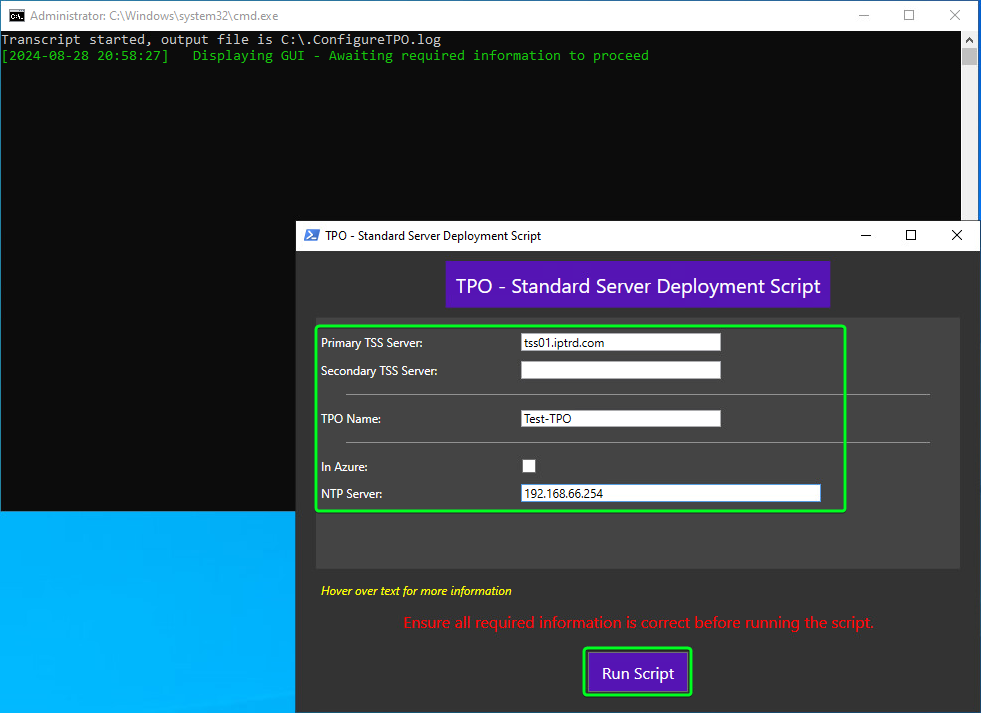
Next double click on the “Launch_TPO_Scripted_Install.bat” to run the scripted installer GUI. Fill in all values relevant for your install and then click the “Run Script” button
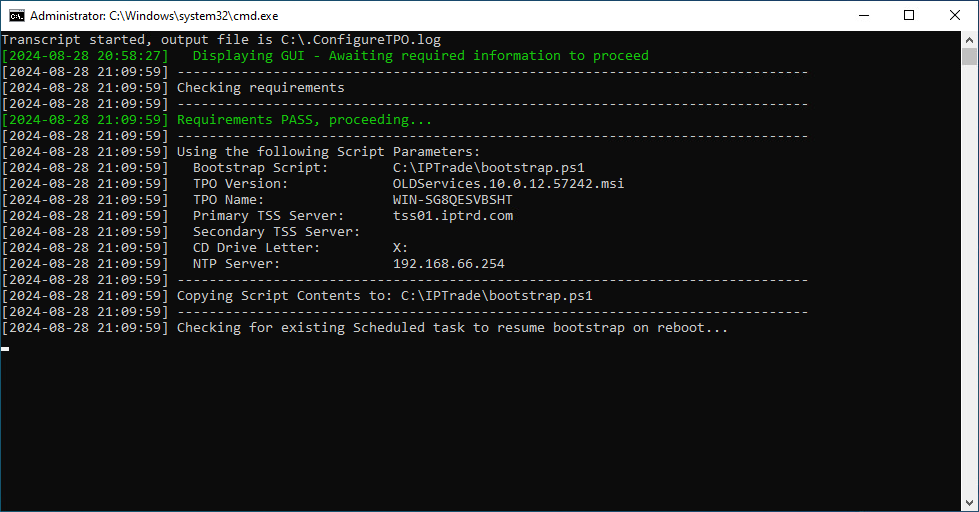
Once the script starts to run you will see the running status in the terminal box
The script runs in the background to completion without needing the server to be logged in. You can log back into the server after the above.
If you did happen to log in to the server before the scripted tasks were complete, this will not break the scripted install. But be aware that the script will not be able to perform any additional required reboots once the server is logged in.
In all cases you should monitor the script install log (see further below) and manually reboot the server if the last line reads “Rebooting host…” this means the script was not yet completed and will require a manual reboot. Once the end of the script log reads “Bootstrap complete” this indicates the script has fully completed all tasks.
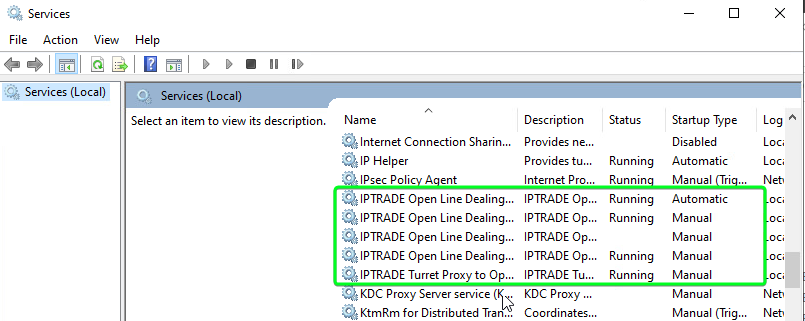
Post install checksService checksIf everything deployed successfully you should see the IPTRADE services installed and started (If you added in the TPO names in the TSS before the deployment)
You will also see the TPO online in the TSS
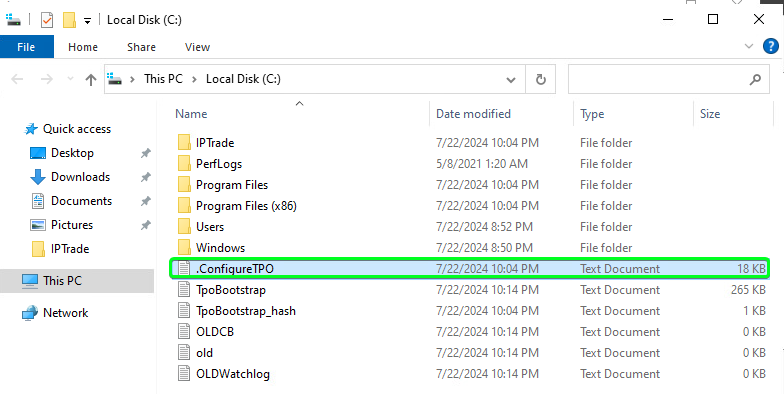
Script Log file outputThe script file creates a deployment log file which can be checked if any deployment fails. You can find the log file in the root of the C:\ in a fille called “.ConfigureTPO”
If the script ran successfully to the end, you should see the following at the bottom of the log file
Checking NTP Server Sync (If optionally set during script install)
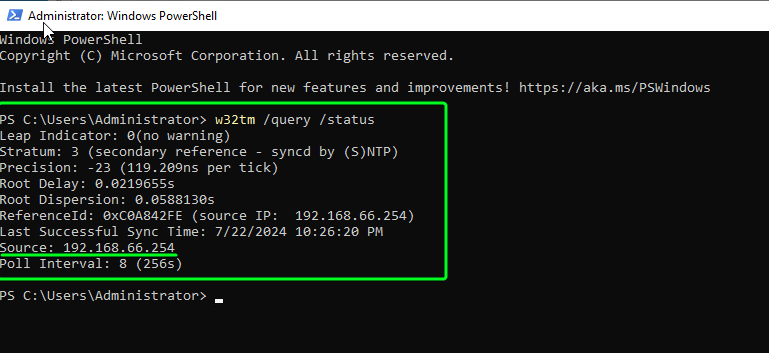
You can query the windows time service with the below command in a PowerShell terminal
You should see similar output to below with the “Source:” matching the NTP server variable value you input during the Script install/Run.
It also shows the last successful sync time.
|