Usage


Usage |
|
| Trading and C&C > Netrix > Keypage Editor > Edit Shortcuts |
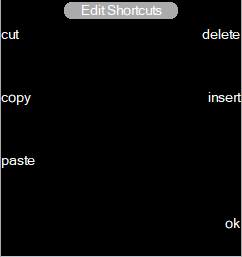
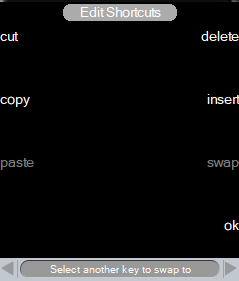
Edit shortcuts menu has 5 available operations that users can use to edit a shortcut on a private page. A user can •Copy a shortcut from shared/private page to be pasted on a private page. •Cut a shortcut from a private page to be pasted on another private page or same page at a different location. •Paste a copied/cut shortcut onto a private page. •Delete a shortcut from a private page. •Insert a shortcut from the list of unlinked shortcuts to private page •Swap two shortcuts within a private page or between two different private pages
Following is each of above operations in detail.
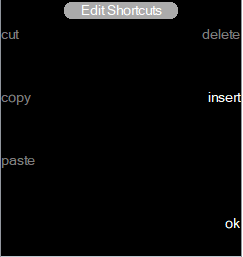
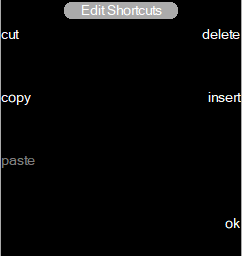
Copy a shortcut from shared/private page to be pasted on a private page. 1.Select a shortcut to copy 2.Choose the Copy operation 3.Click on the empty position on a private page. 4.Choose the Paste operation. The moment you select a slot the available operations will become enabled on the Edit Shortcuts menu.
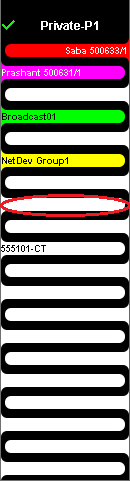
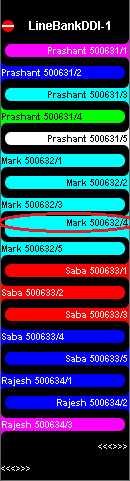
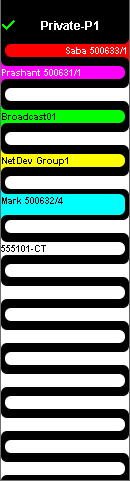
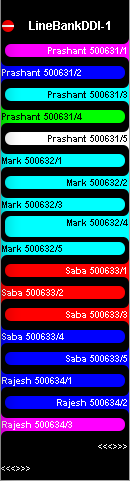
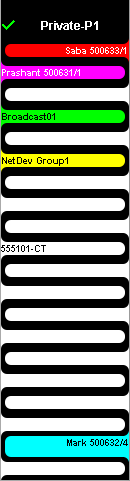
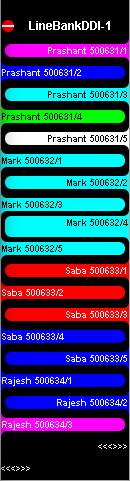
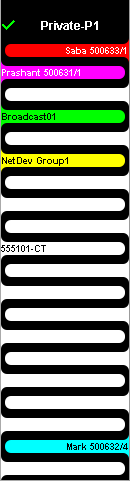
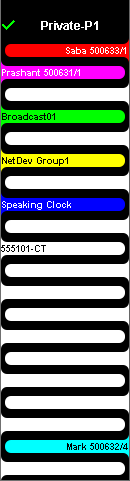
In the above example, the user can either cut, copy, or delete a shortcut from/to the private page Private-P1. Users can only Copy a shortcut on a shared page. Here, the user is copying the shortcut labeled “Mark 500632/4” from page LineBankDDI-1, onto Page Private-P1 at 8th empty slot highlighted position. The moment user selects a Copy operation, paste operation, which was disabled till now, gets enabled. Later, the user must click on desired slot position to paste, here its eighth position on page Private-P1, and select the paste option. Shortcut “Mark 500632/4” is copied onto the private page, on sixth position in this case.
Cut a shortcut from a private page.You can A.Cut and paste shortcuts on the same private page from one position to the other. Here, user has simply cut previously copied and pasted shortcut at 8th position on private page Private-P1 and pasted at second from last (19th) position on the same page. Steps are simple: 1.Select a shortcut to cut 2.Choose the Cut operation 3.Click on the empty position on the same private page. 4.Choose the Paste operation.
B.Cut a shortcut from one private page and paste it on another private page. This is a simple operation where the user requires to Cut a shortcut from one private page and Paste it to another Private Page. C.The shortcut which was cut and pasted to another location remains in the clipboard and can be pasted onto other private pages of line banks.
Delete a shortcut from a private page. Deleting a shortcut from a private page is simple, just select the slot to be deleted and click onto the “delete” menu option.
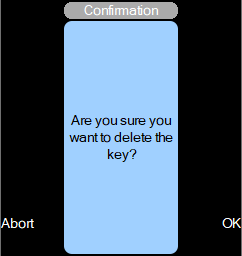
You will receive a confirmation dialogue as below, press OK to confirm.
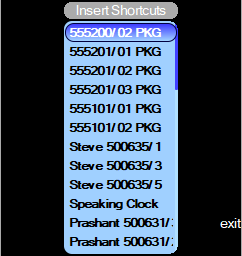
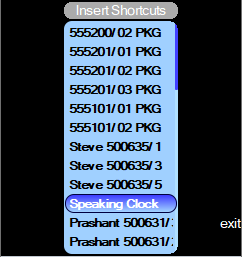
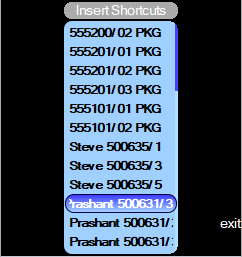
Insert a shortcut from the list of unlinked shortcuts to a private page. There can be some shortcuts that are not linked to any pages; hence those shortcuts are not available for a user to do any call related operation. The insert menu is introduced to get the list of such unlinked shortcuts. Once the user selects insert, a list of shortcuts is opened with the option to select a shortcut from the list or exit the insert menu.
To insert a shortcut to any private page, you must select the desired shortcut from the list and click on any blank slot on any private page of a line bank. In the example below the "Speaking Clock" shortcut is selected in the list which will be inserted to the 6th Slot in page "Private-P1" by selecting it .
The shortcut link will be created in the respective position in line bank and removed from the list. If all the links of any shortcut are removed from line bank pages, then it will appear again in the list of unlinked shortcuts when next time insert menu is selected.
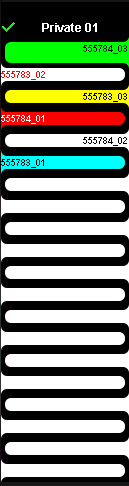
Swap shortcuts within private pages. The swap shortcut function can be used to rearrange the shortcuts within a page or between two different pages. Swapping two shortcut is pretty straight forward. Follow the below steps to swap a shortcut. Scenario shown here is swapping within a page. 1.Select a shortcut key in any private page. The swap button will be enabled. 2.Press the swap button. A message "Select another key to swap to" as shown in the below picture will be displayed.
3.Select another shortcut key to swap with. Please note that the swap button is disabled at this step, hence you must select another swappable key or press ok button to cancel the swap operation and exit the edit shortcut menu.
Note: Swapping shortcut keys between two different private pages may show up an error "Key exists, select another page / key", in the below scenarios. Let us assume swapping is being done between source page 1 and destination page 2 with the key 1 in the source page 1 and key 2 in the destination page 2. The error will show up if Case 1. A shortcut for the slot same as the key 1 already exists in the destination page 2. Case 2. A shortcut for the slot same as the key 2 already exists in the source page 1. If the above error appears a key as destination key in the different page say page 3 or within source page 1 must be selected in case the error was due to the case 1 or a different key in the destination page 2 must be selected in case the error was due to the case 2. The partial swap operation can always be canceled by pressing ok button and exit from the edit shortcut menu. |