Usage


Usage |
|
| Trading and C&C > Netrix > Internal Speakers |
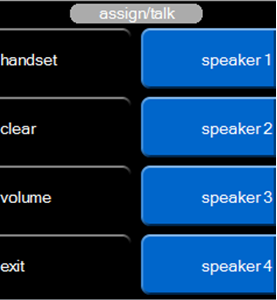
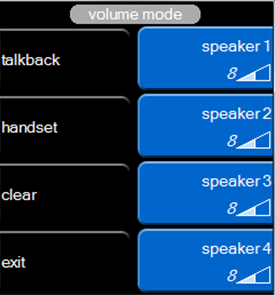
The Netrix Command Module is provided with an integrated speaker. The speaker can be used to provide microphone communication with up to four dynamic speaker channels. If you also use the intercom, the audio from lines assigned to internal speaker channels and intercom calls can be shared on the internal speaker. If you need to listen to an intercom call, you simply mute the incoming speech across all internal speaker channels. When you log out of the Netrix, internal speaker channel assignments for Private Wire lines are automatically saved (although the speaker channels are cleared). When you next log on, all internal speaker channel assignments are automatically restored. Internal speaker channel functionality is controlled via a series of menus shown in the application display on your Netrix. Although internal speaker channels do not support the full range of functionality provided by using the VM8 speaker box, they do provide you with all the essential control functions. These include: •assigning up to four internal speaker channels. •individual volume control for each internal speaker channel. •toggling any of the internal speaker channels back onto your handset. •clearing individual internal speaker channels. •temporarily mute incoming speech across all internal speaker channels. •talking back over a speaker channel. To use internal speaker channels your user profile must be configured to support internal speaker mode. This configuration is performed by your Platform Administrator. Your Netrix should have an external microphone fitted if you want to talk back on an internal speaker channel via the microphone. If no microphone is connected talk back is via your handset. Note: handsfree mode is not supported when the Netrix is configured for internal speaker channel operation. Opening the internal speaker menuThe internal speaker menu is displayed when you press the speaker key on your Netrix. This key is positioned on the bank of keys under the rotary control.
press speaker key …on your Netrix The internal speaker menu is displayed.
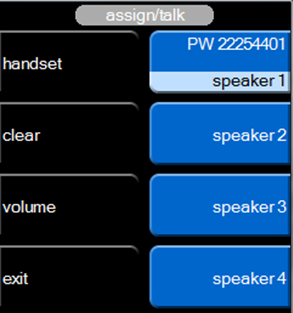
Closing the internal speaker menuOnce you have assigned internal speaker channels you can close the internal speaker menu. press exit …in the internal speaker menu or press speaker key …on your Netrix Assigning a line to an internal speaker channelYou can assign a line to each of the four internal speaker channels (labelled speaker 1 through to speaker 4). Once a line has been assigned to a speaker channel its associated line label is shown in the adjacent label field within this menu. With the line connect to your handset
press speaker key …on Netrix The internal speaker menu is displayed. press speaker 1, 2, 3, or 4 …of speaker channel to assign the line on current handset. The line is now connected to the speaker channel, and automatically cleared from handset.
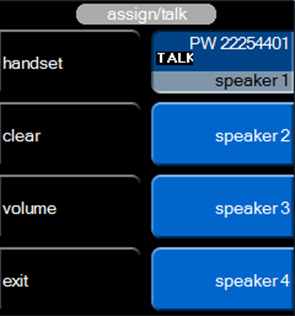
Line key label: Unable to assign line to an internal speaker channelThere are some restrictions on which lines can be assigned to internal speaker channels. You cannot assign: •intercom calls# • DDI call if the call has not been dialled. Talking back over an internal speaker channelYou can talk back over an internal speaker channel via one of two methods: •Push-to-talk – you continually hold down the speaker channel key whilst speaking via the microphone. Once you release the key transmission of your speech stops. •Push-to-latch – you tap the speaker channel key to latch open the channel. When you have finished speaking you tap the speaker channel key again to un-latch the channel. Your trader profile is configured to support one of the above options.
With a call on speaker channel press speaker 1, 2, 3, or 4 …to talkback on that channel.
Note: Your Netrix should have an external microphone fitted if you want to talk back on an internal speaker channel via the microphone. If no microphone is connected talk back is via your handset. Toggling to handset You can toggle a line connected to an internal speaker channel back to the handset.
press speaker key …on Netrix The internal speaker menu is displayed. press handset …the speaker to handset menu is displayed, with menu title or “handset mode”. press speaker 1, 2, 3, or 4 …to move the audio from that channel to your current handset.
Or press line key …for the line on the Netrix indicator red – on …the call is now connected to your handset Toggling back to internal speaker channelWith the call on the handset: press speaker 1, 2, 3, or 4 … to move audio back in the internal speaker or press clear key …on Netrix
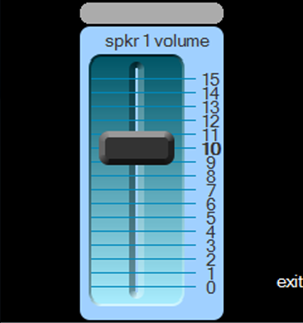
Note: if you clear an internal speaker channel that has been toggled back to the handset, it remains connected to the handset. Adjusting the volume of an individual internal speaker channelYou can adjust the incoming speech volume level on a per internal speaker channel. The label and graph adjacent to the appropriate speaker channel key display the current setting. The settings range from mute (0) through to very loud (15).
press speaker key …on Netrix The internal speaker menu is displayed. press volume …the set speaker volume menu is displayed
press speaker 1, 2, 3, or 4 … of channel to adjust The volume bar chart for the selected speaker channel is displayed:
press press exit …to save the changes and close the volume bar chart Clearing an internal speaker channelThis option allows you to clear an individual internal speaker channel.
press speaker key …on Netrix The internal speaker menu is displayed. press clear …the clear speaker menu is displayed press speaker 1, 2, 3, or 4 … to clear that channel. Voice-on-line (VOL) indicationIf enabled the voice-on-line indicator is shown as a red outline to the speaker channel label when incoming speech is received over that speaker channel.
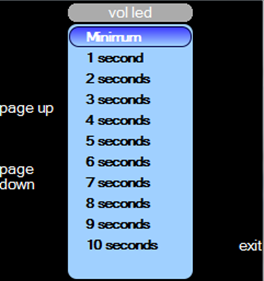
This option is configured via the speaker settings menu. press utilities press speaker settings press spkr vol enable …voice-on-line indicator is displayed when incoming speech is received on an internal speaker channels This is a toggle-action key, press again to remove voice-online indication. press ok …to confirm and exit the speaker settings menu Voice-on-line (VOL) persistenceControls the length of time that the voice-on-line indicator remains displayed once incoming speech has ended on the internal speaker channel. This option is configured via the speaker settings menu. The current setting is shown under the vol led key. Range: Minimum to 10 seconds press utilities press speaker settings press vol led …the vol led menu is displayed
press press exit …to confirm
|

 or
or  keys to increase or decrease the volume.