Headset Setup


Headset Setup |
|
| User Options > Peripheral devices > Headset > Jabra |
The Administrator needs to install Jabra Direct on computer with Windows system in order to change the default settings of the headset device. The supported Jabra device firmware version is 3.4.1 (or later). SetupLine (mandatory)The headset is able to manage several different lines (PC, Deskphone and mobile). Usually the default line is Deskphone. For USB connection (PC), the default line must be PC. Radio link (mandatory)We need radio link between the base/ Jabra Link 400 and the wireless device (audio link) to automatically established when audio is detected at the USB port. Ringtone on headset only (optional)The customer can configure the headset to play the ring tone only on the headset
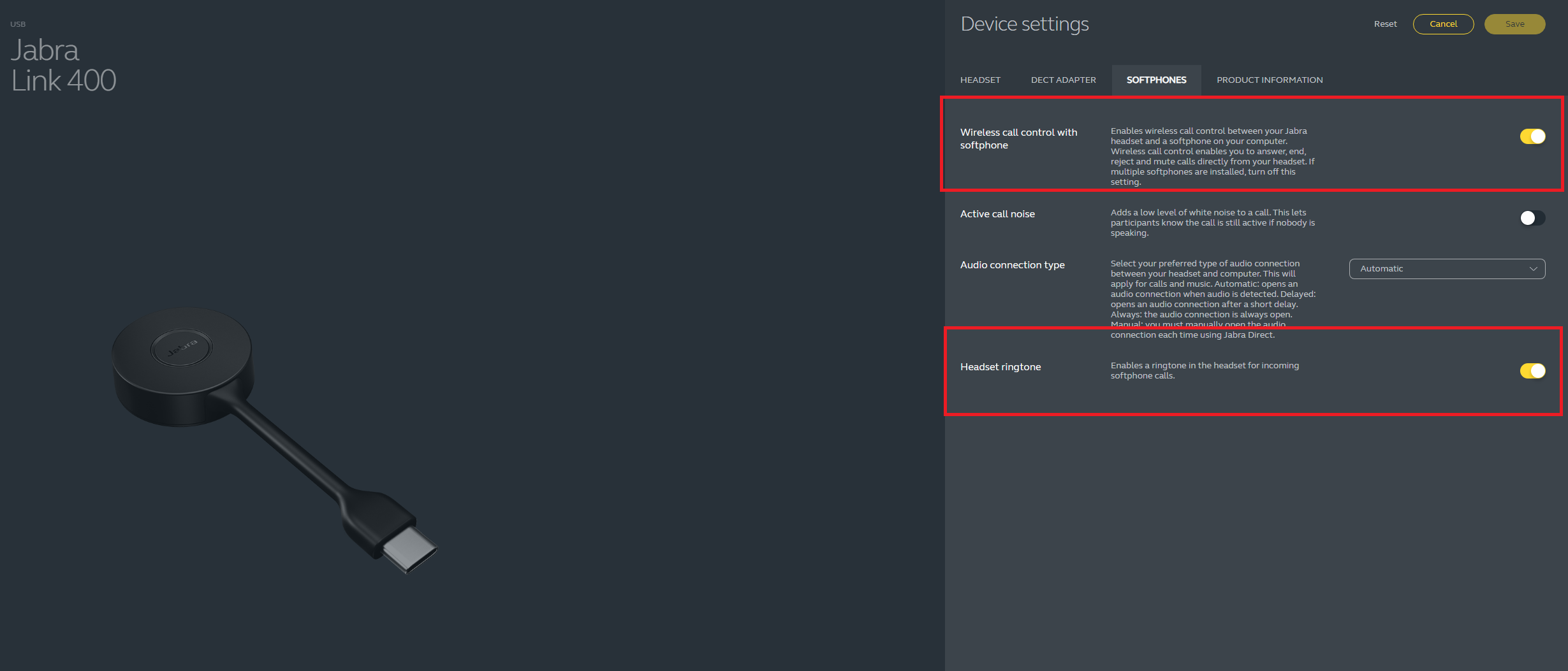
Jabra Direct for Engage 55
In Jabra Direct, Go to Jabra Link 400
Go to SOFTPHONE;
•Enable Wireless call control with softphone. •Enable Headset ringtone.
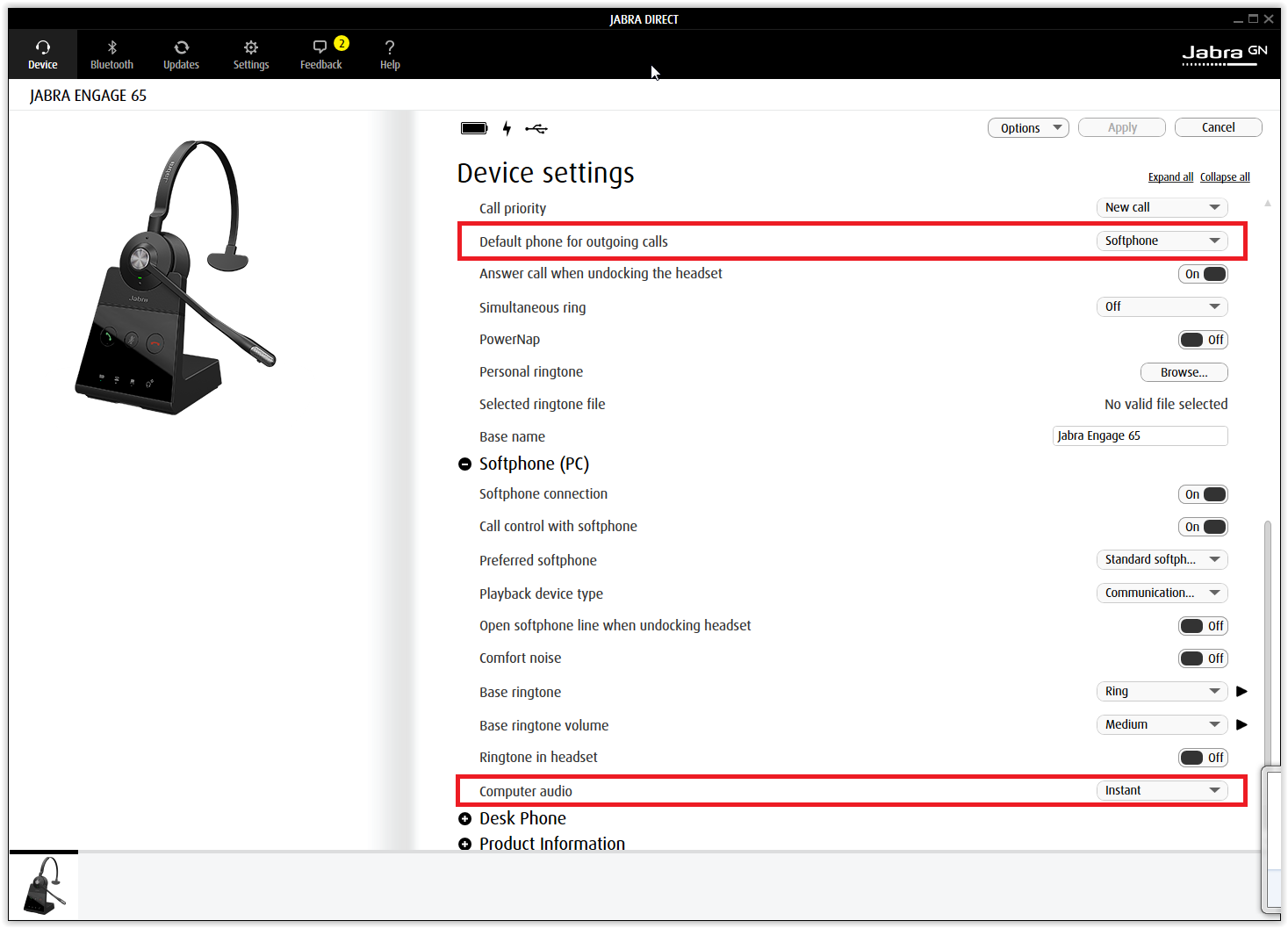
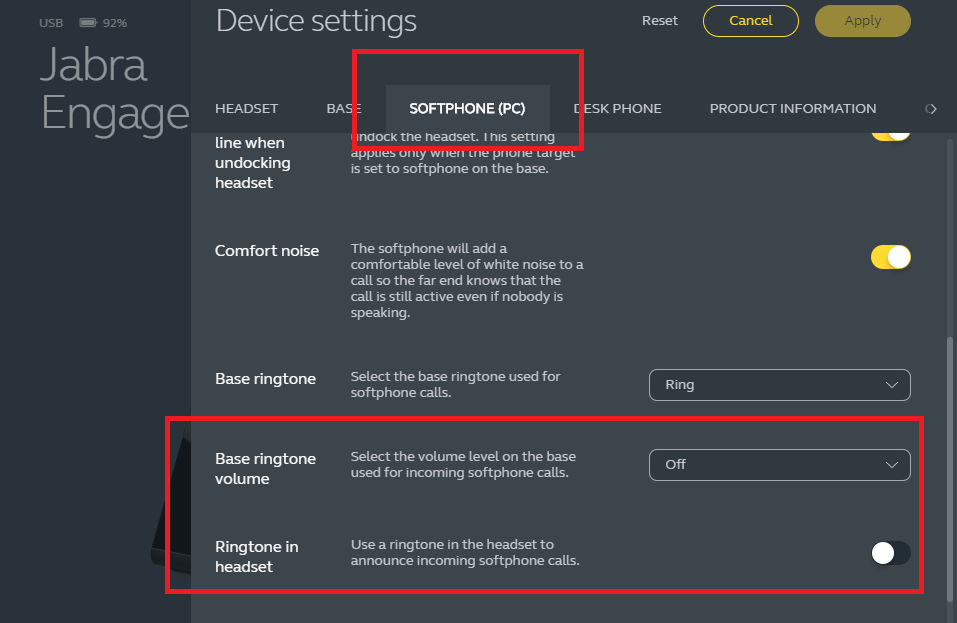
Jabra Direct for Engage 65 and Engage 75
In Jabra Direct, Go to Device and modify and then click on Apply to validate:
•In Base: Default phone for outgoing calls to Softphone •In Softphone (PC): computer audio to Instant
•In Softphone (PC): Disable Ringtone in headset •In Base: Set Base ringtone volume to Off
|