Create a trigger shortcut


Create a trigger shortcut |
|
| Solution Integration > Trigger > Configure |
One shortcut at a timeOn the TSS administration console, open a (user or shared) profile edition form. Select the shortcut tab and click "Add New" in the second table (under title "Shortcuts").
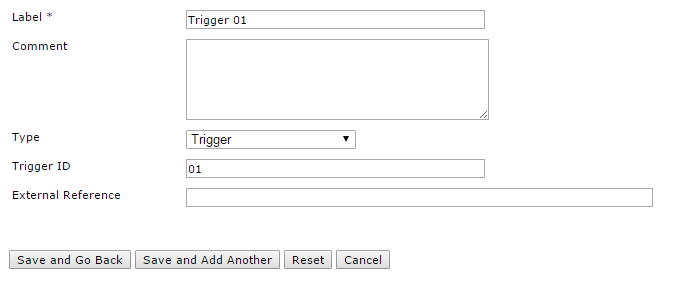
Fill the label row with the name that should be displayed on the shortcut. Select the type "Trigger" in the drop-down. Fill the trigger ID row with the command (CMDID) that the turret will send to your trigger application when the user clicks the shortcut.
Click "Save and Go Back".
Using provisioningOn the TSS administration console, open the Phonebook and click "Provisioning". The line regarding the Trigger shortcut must contain the trigger ID instead of an extension, and Trigger as a type.
Eg. "Trigger profile = Triggers = Trigger 01 = 01 = Trigger" |